Stage.IO
Coming soon.Stage.IO keeps the system paperwork for a show in one project. Every input and output, radio mic, network, comms station and every in between goes on the pages you need.
The screenshots and the PDF on this page come from the real app, filled with the made-up Bristol project from the example tour.
Overview
How a project goes from a blank page to the PDF for the rack room.
The pages
A project has 39 pages in twelve groups, listed down the side in the same groups as this page. Any sheets you add yourself are filed in with them. Open a group below to see its pages.
01FOH
The FOH console’s inputs and outputs, and the sockets on the desk itself.
01FOH
The FOH console’s inputs and outputs, and the sockets on the desk itself.
Inputs
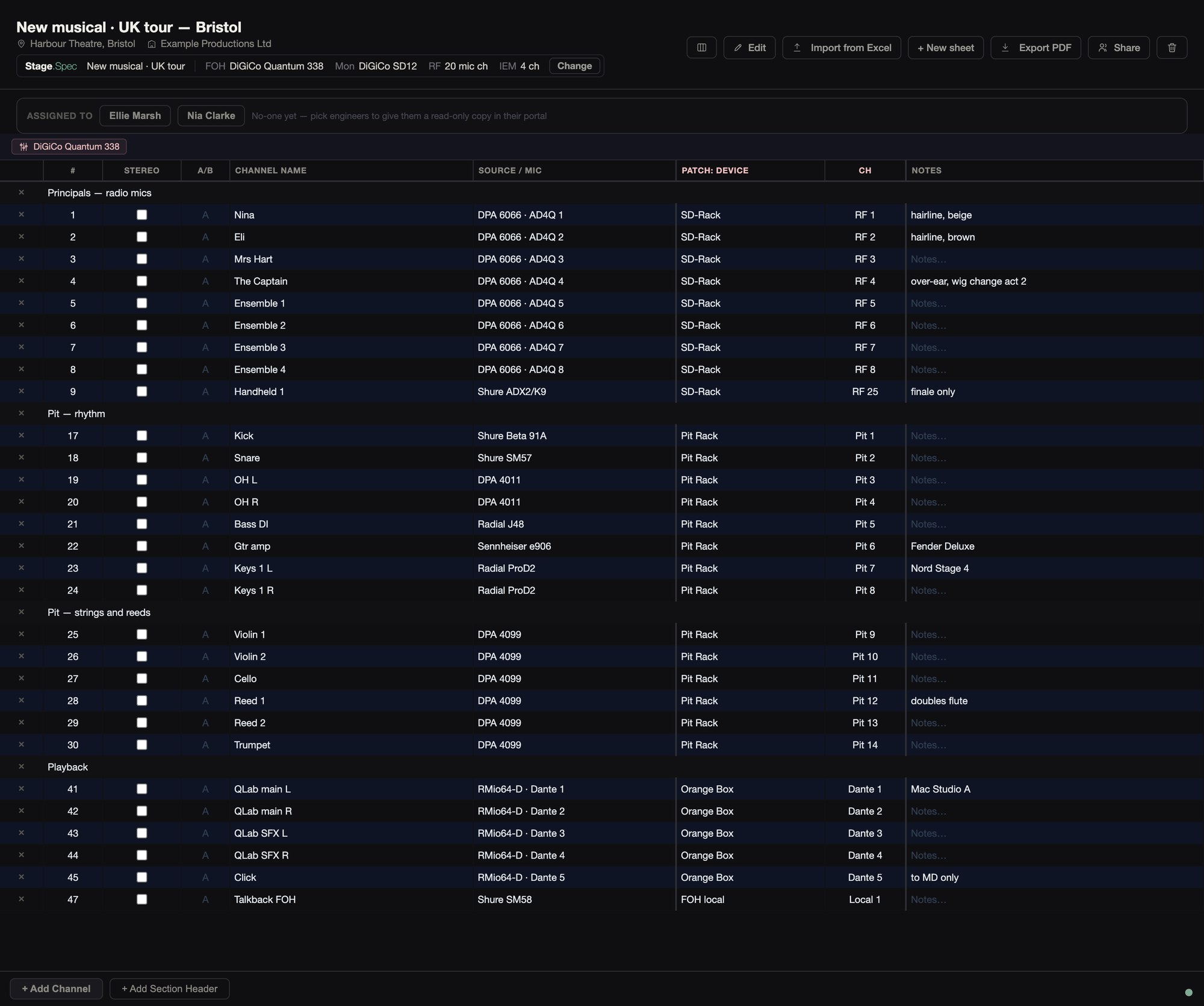
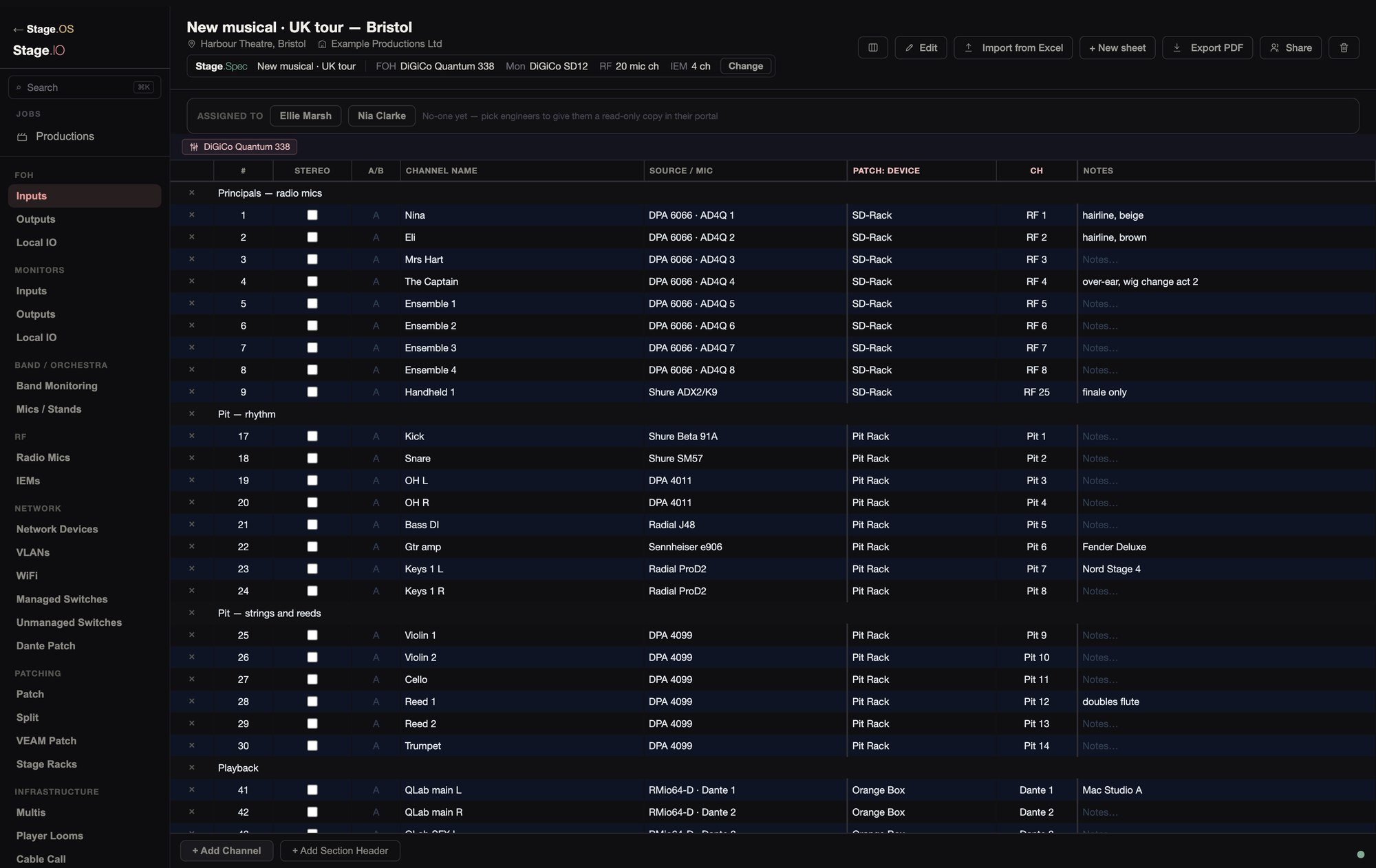
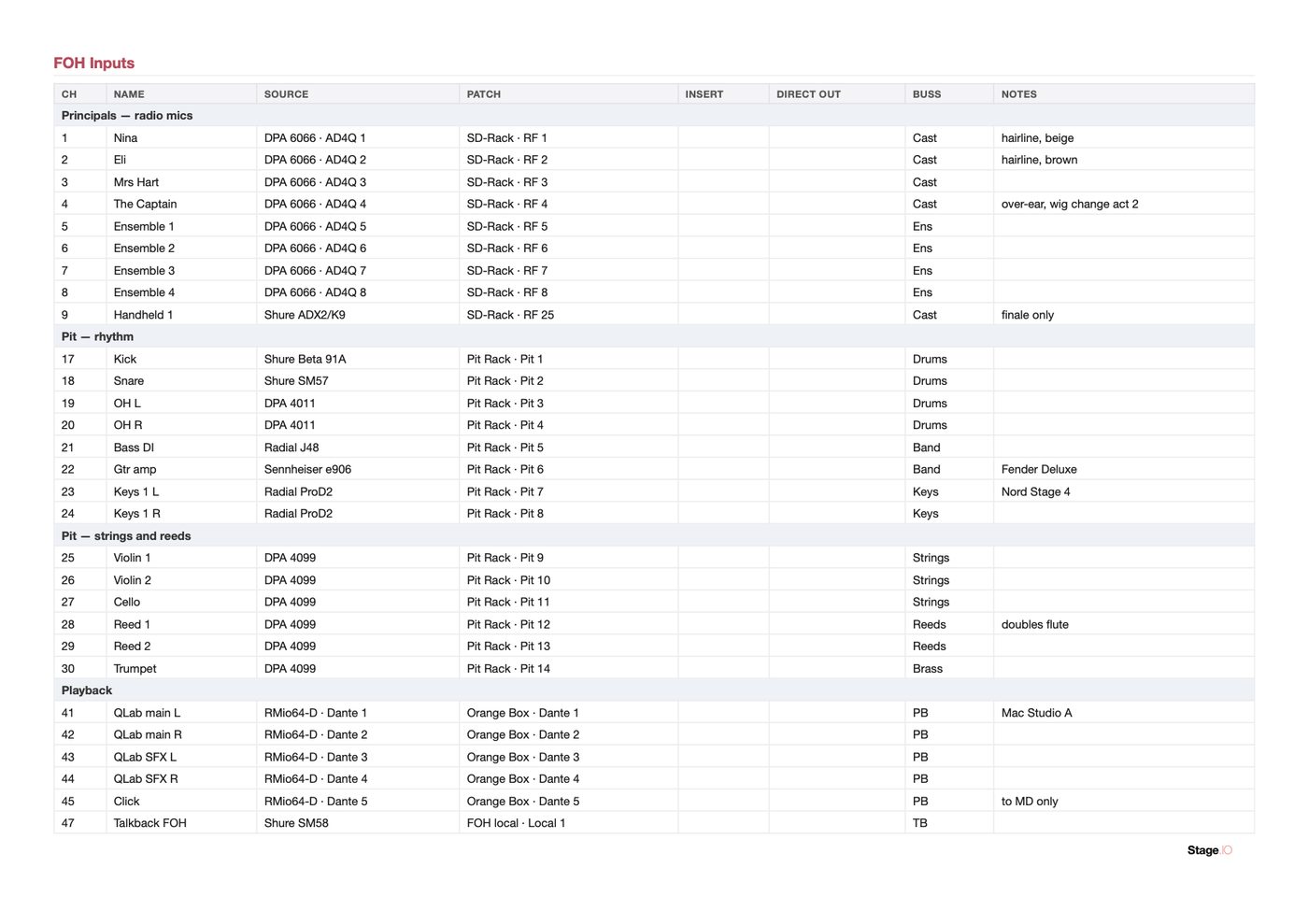
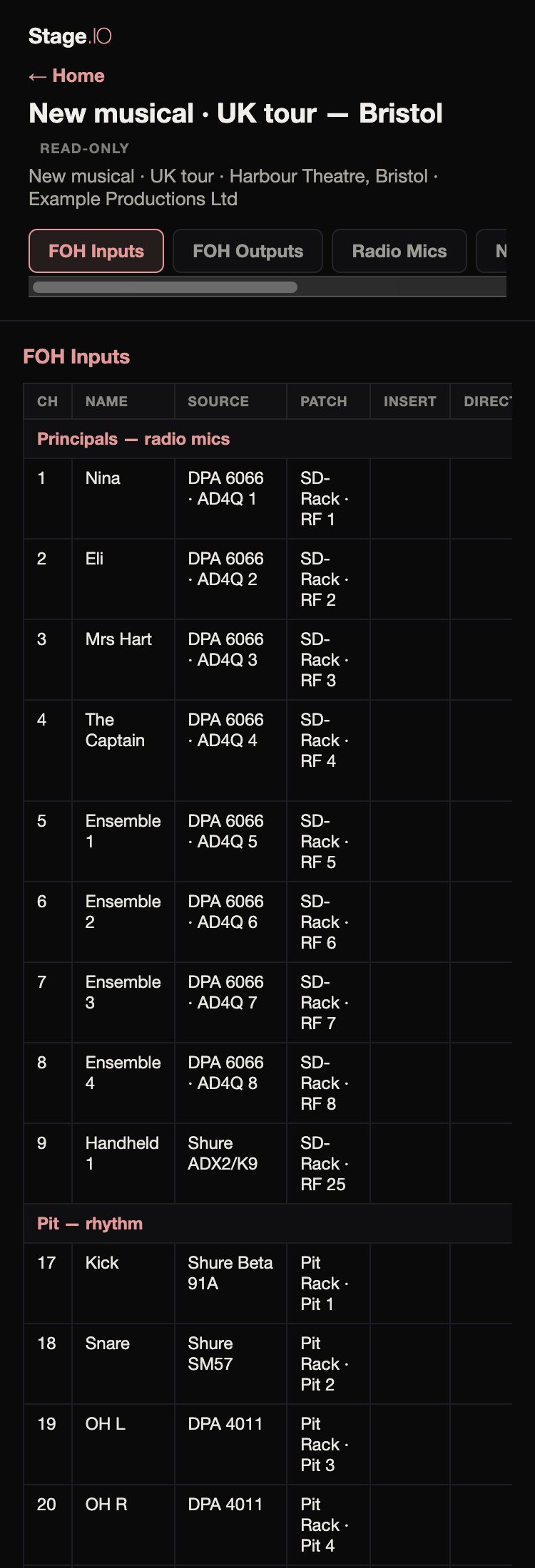
Each row of the input list has the channel, name, source or mic, patch device and channel, and notes, in sections you name. Channels are numbered automatically. The two channels of a stereo pair are marked A and B.
With a spec linked, the console is shown at the top with a bar of the channels used against the channels in the spec. The bar turns amber at 85% and shows OVER when you go past the spec.
Outputs and Local IO
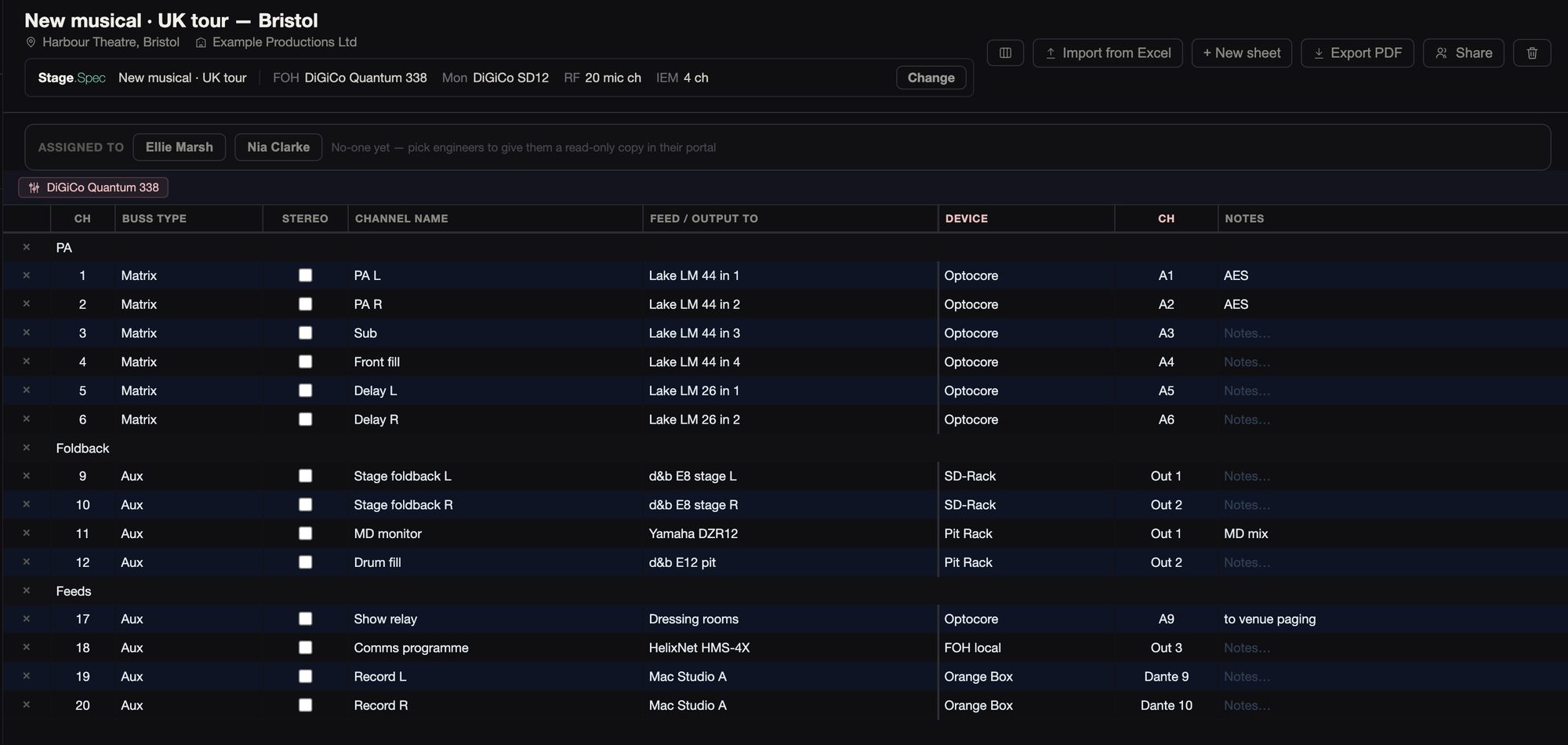
Each output has its buss type, stereo, name, what it feeds, and the device and channel, with the same capacity bar as the inputs.
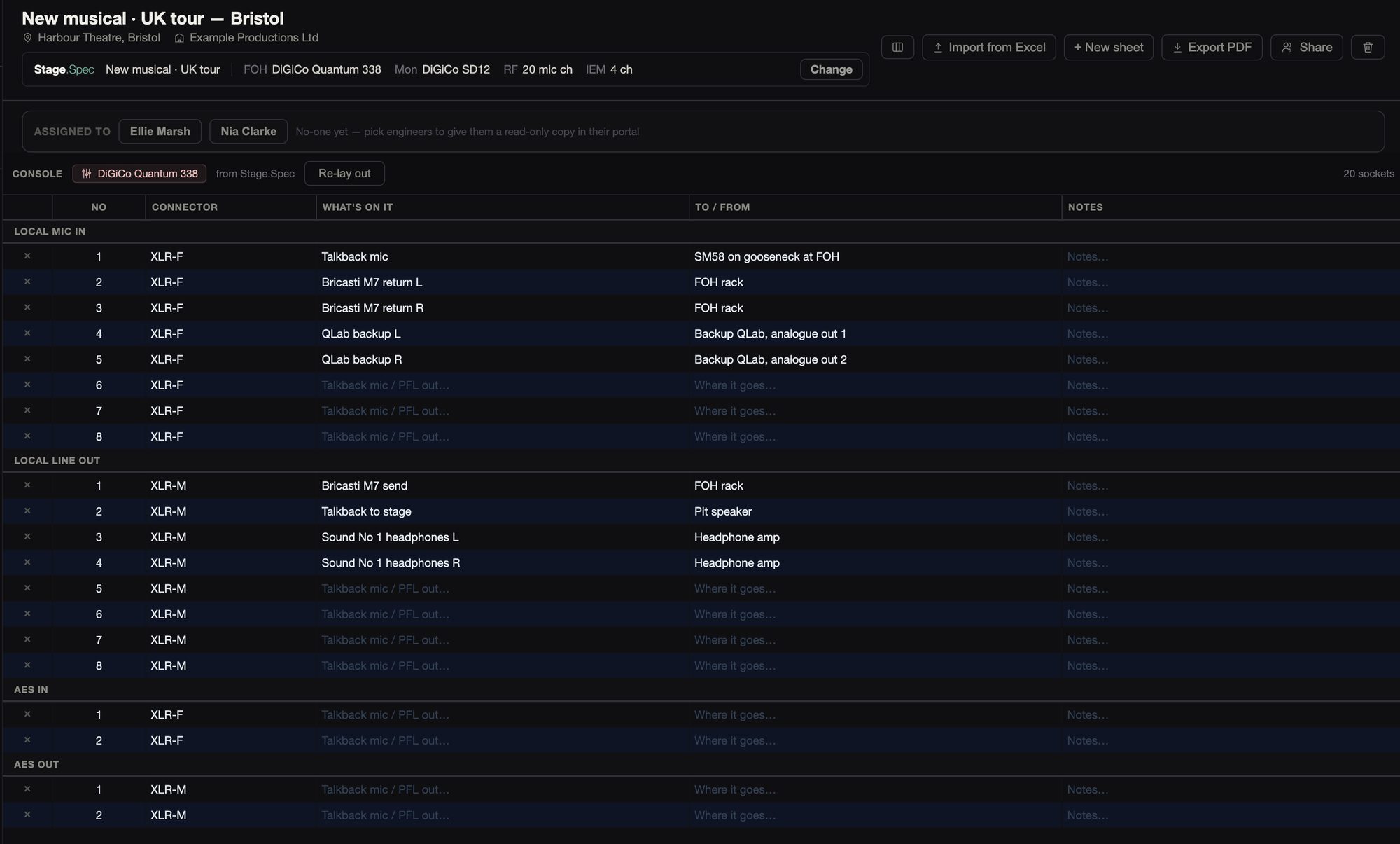
For the desk’s own sockets, pick the desk or take it from the spec, then press Lay out to list every socket on it, with what’s on each, where it goes and notes. There are eleven desks to start with, from DiGiCo, Avid, Allen & Heath, Yamaha, Midas and Behringer.
02Monitors
The same three pages for the monitor console.
02Monitors
The same three pages for the monitor console.
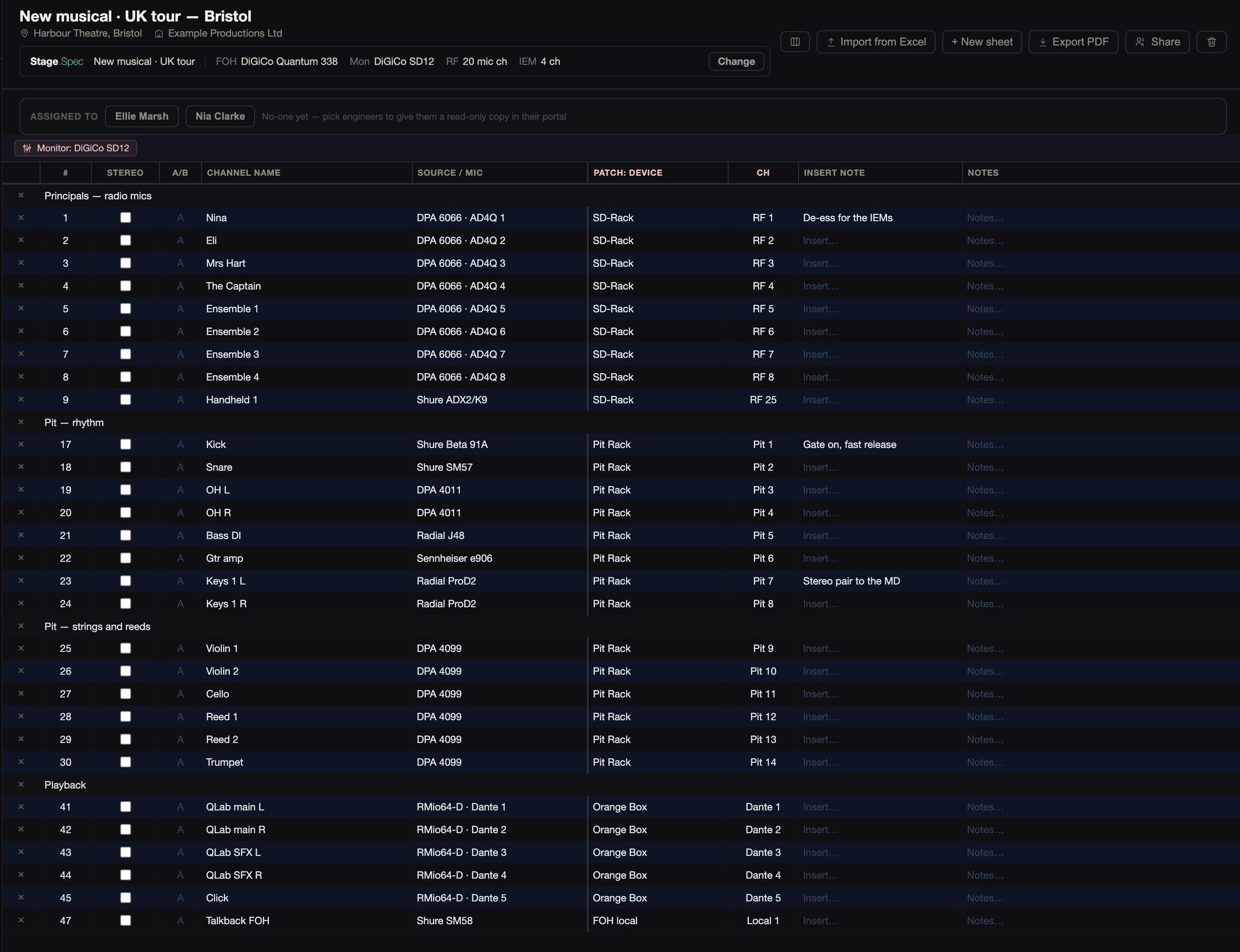
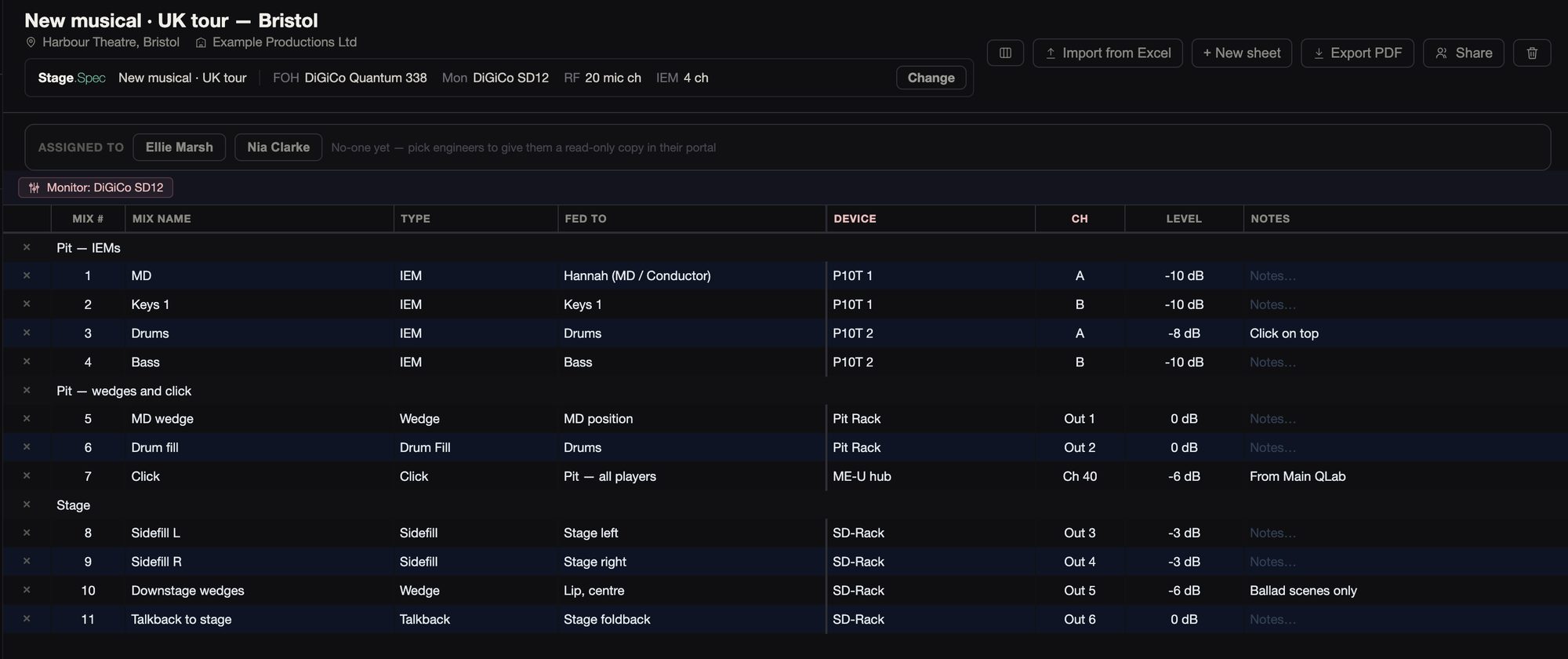
The inputs work as they do for FOH, with an extra column for the insert. Each mix has its number and name, type, what it feeds, device, channel and level. Local IO lays out the monitor desk’s own sockets in the same way, with the desk taken from the spec.
03Band / Orchestra
How each player hears the show, and what goes on their position.
03Band / Orchestra
How each player hears the show, and what goes on their position.
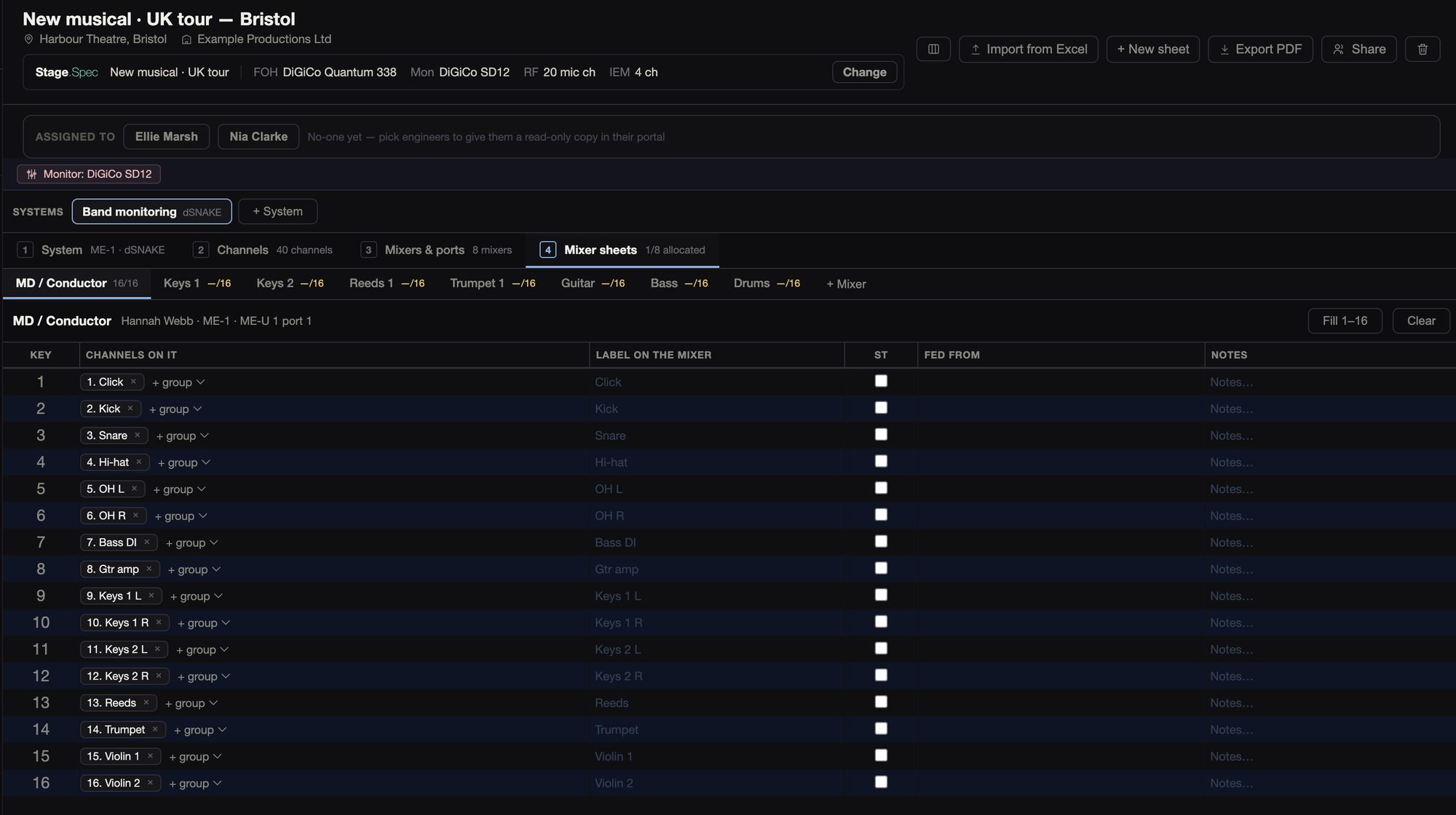
Band monitoring starts from one of nine rigs: Allen & Heath ME, Aviom, Behringer P16, Roland M-48, Klang, Waves MyMon, or console auxes to IEMs or wedges. You can have more than one per show if you need it.
You set it up in order: the system, its channels, the mixers or packs and the ports they’re on, then a key sheet for each mixer. Hub cards are chosen from a picker that shows the ports used against the ports on the hub, and two things on one port show in red. On each key sheet you can put several channels on one key, mark a key as stereo, fill the keys in order, or copy another player’s mixer.
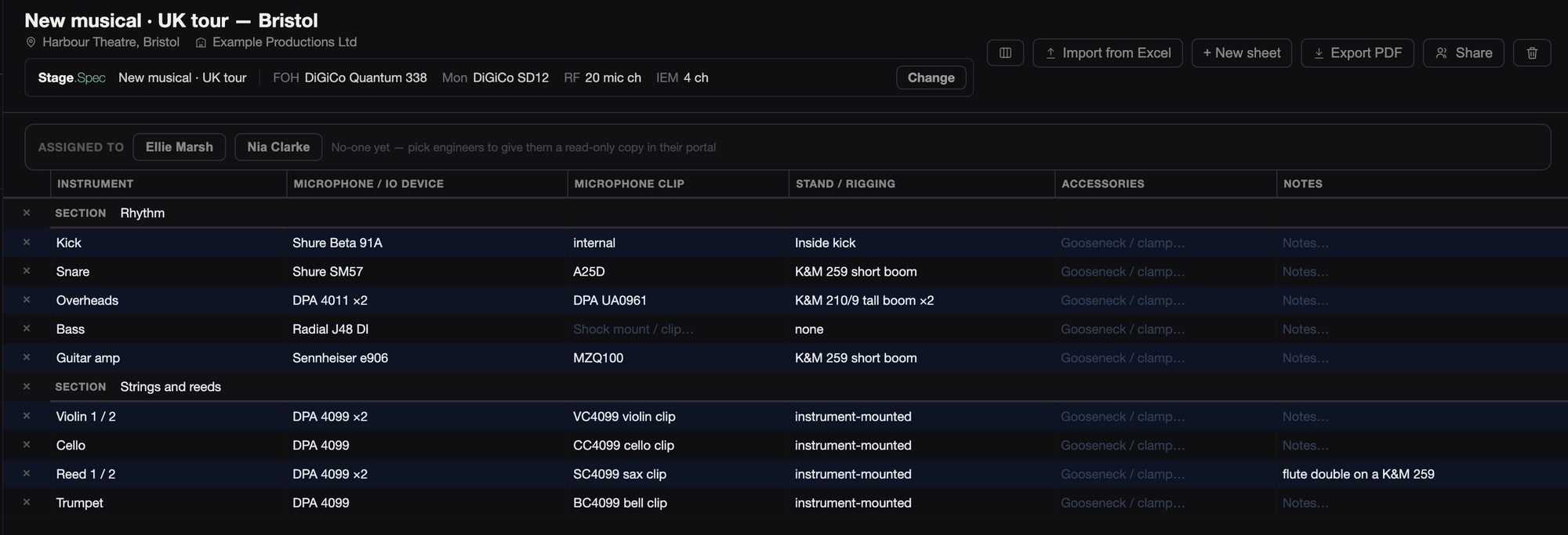
Mics and Stands has a row for each mic, with the instrument, mic or DI, clip, stand and accessories. Both pages take the players from the spec’s band, and pulling again only adds what’s new.
04RF
Radio mics and IEMs, channel by channel, with how each mic is fitted.
04RF
Radio mics and IEMs, channel by channel, with how each mic is fitted.
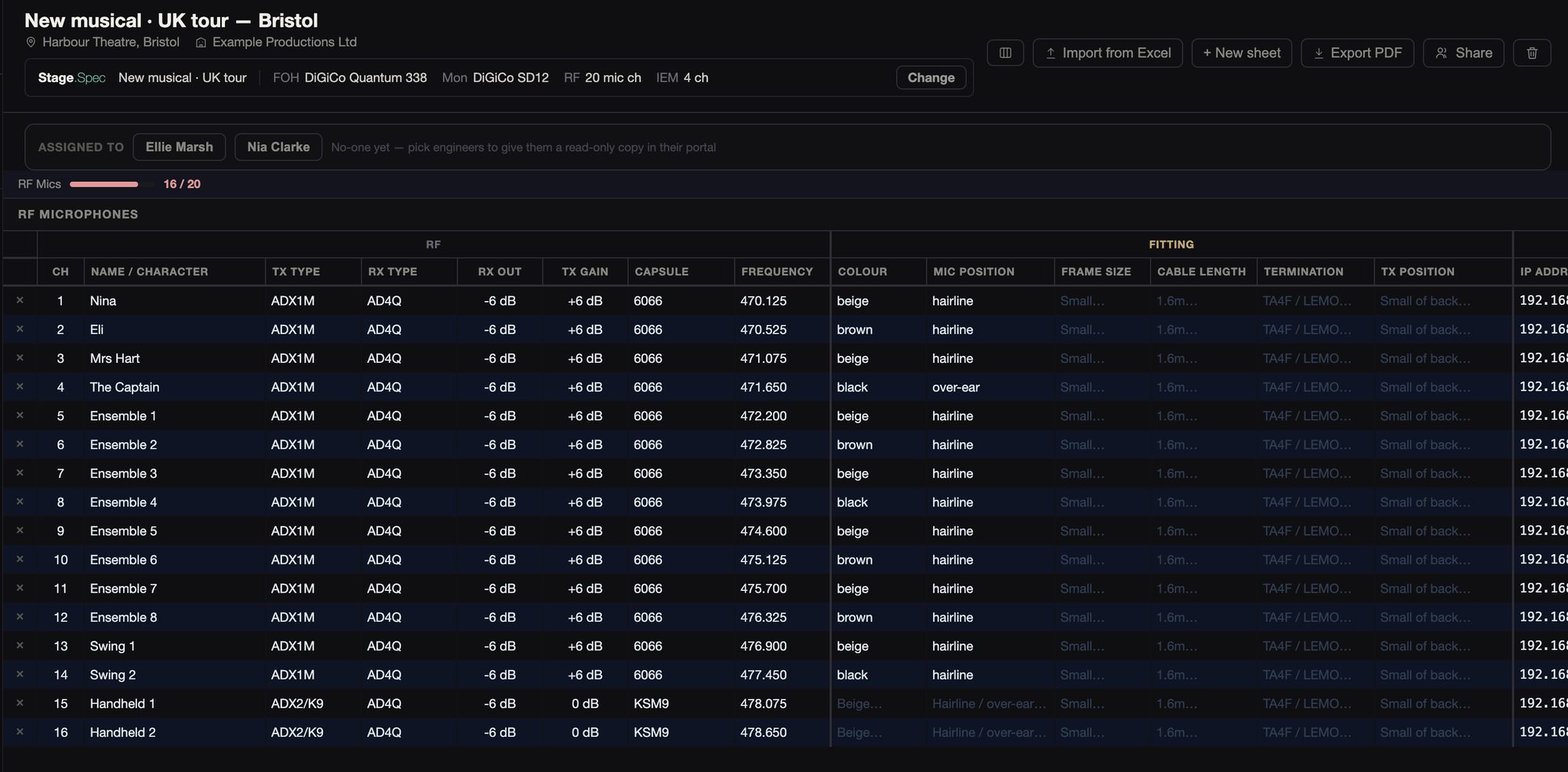
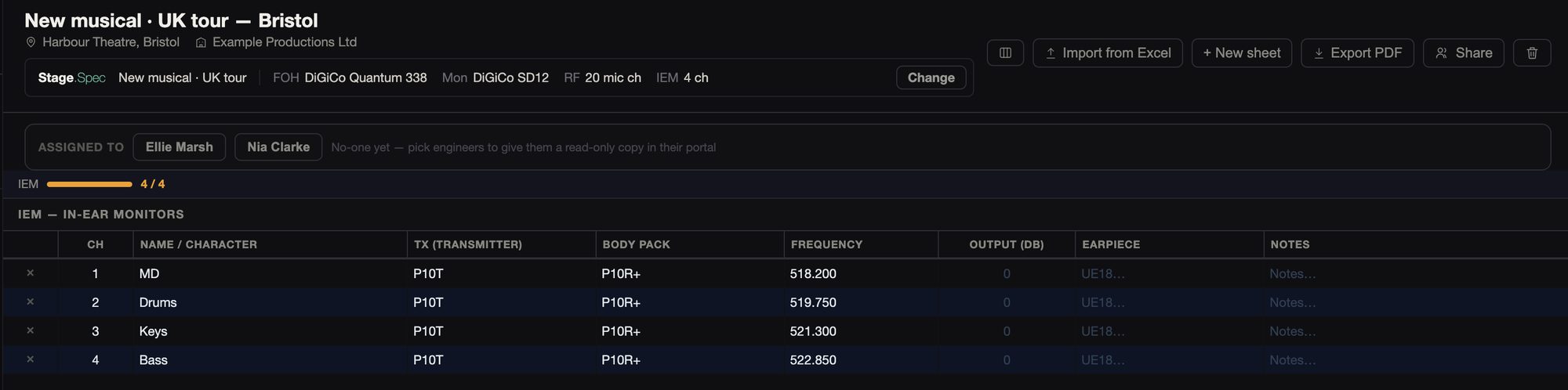
Each radio mic channel has its transmitter, receiver and output, gain, capsule and frequency, followed by the fitting: colour, mic position, frame size, cable length, termination and where the pack goes. Each IEM has its transmitter, body pack, frequency, output and earpiece.
One click pulls the body packs and handhelds, or the IEM packs, from the spec, with their receiver and capsule. There’s more on pulling from the spec below.
05Network
Every device and address, the VLANs, the WiFi, and every switch port by port. The switch config is generated for you to read and upload.
05Network
Every device and address, the VLANs, the WiFi, and every switch port by port. The switch config is generated for you to read and upload.
Network Devices and WiFi
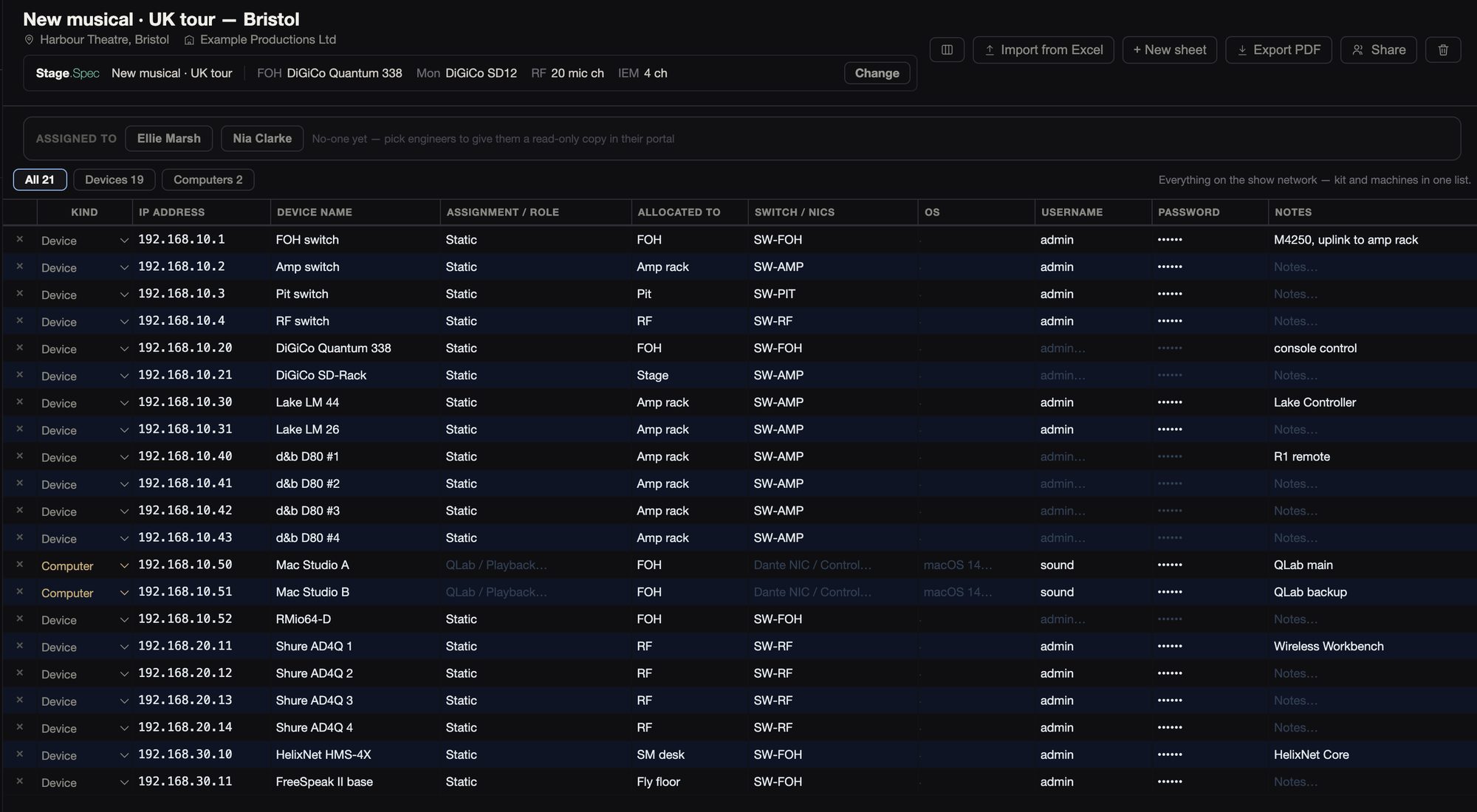
Network Devices lists kit and computers together, with the IP, role, who it’s for, switch port, OS, user name and password, and you can filter the list by kind. Passwords are shown as dots unless you turn them on in your own settings.
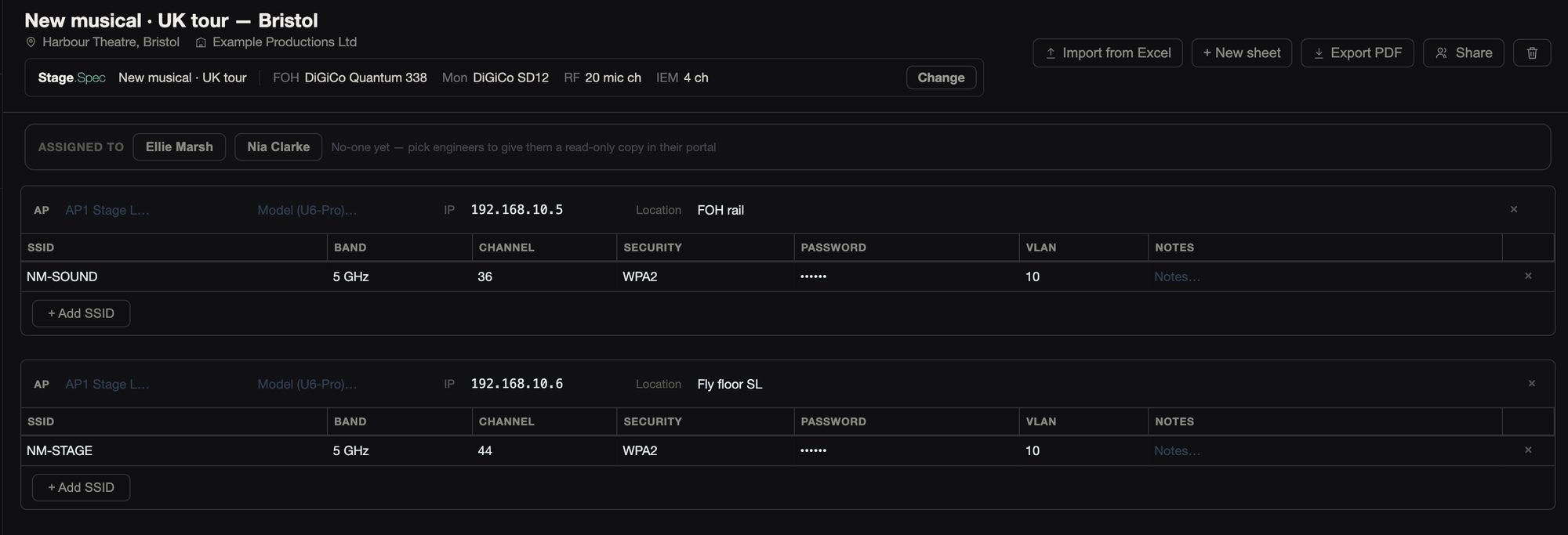
The WiFi page lists each access point, where it is and its address, with every SSID on it and that SSID’s band, channel, security and VLAN.
VLANs
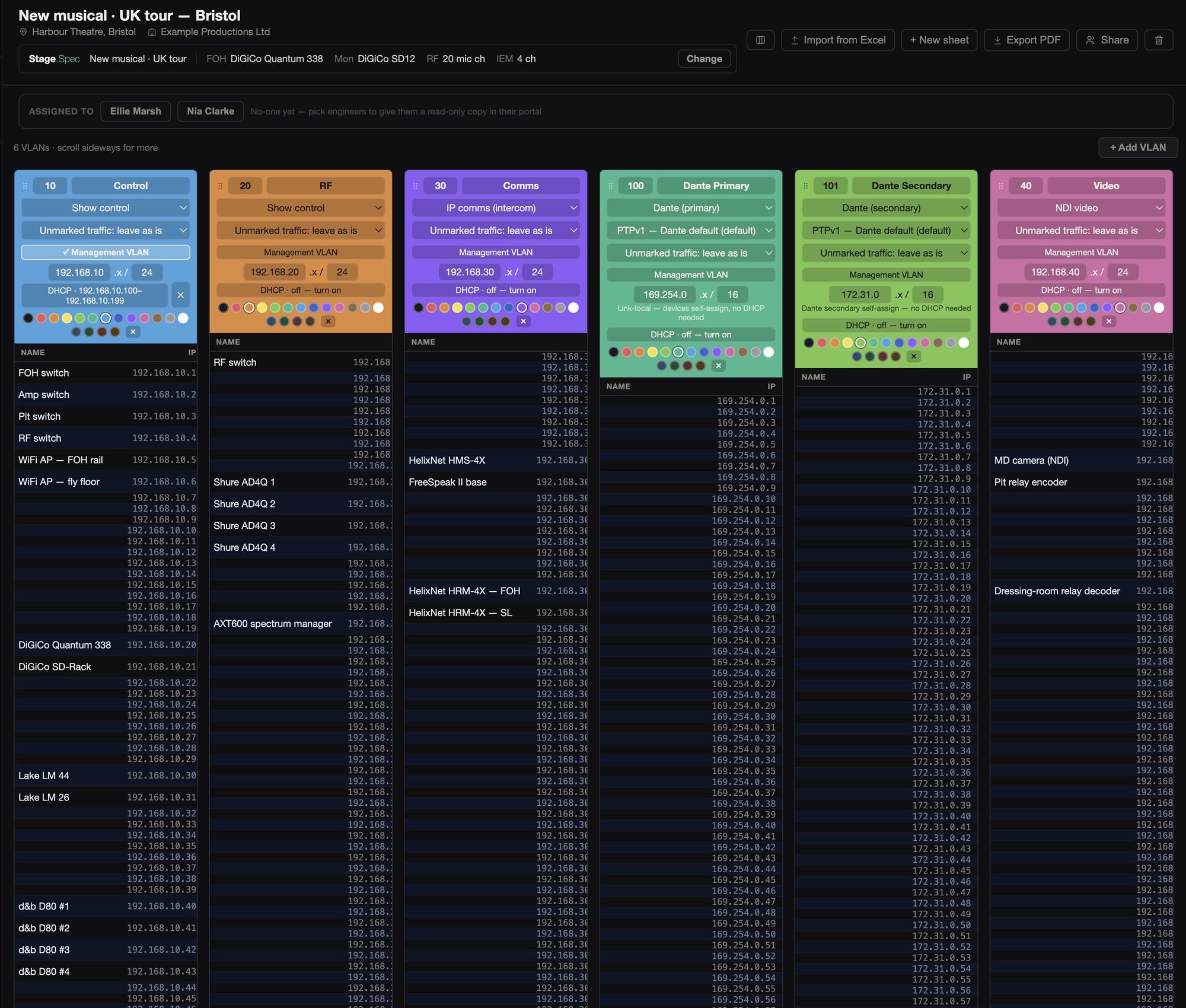
Each VLAN has a column with every address in its range and what’s on it. You can colour the VLANs, and drag them into order without renumbering.
You set what each VLAN carries: Dante primary or secondary, AES67, sACN, Art-Net, NDI, comms or control. If you pick Dante, the 169.254 range is filled in, or 172.31 for a secondary.
Each VLAN gets a DHCP pool, already filled in, with DNS, NTP and lease settings, and the pool shows in the host list. PTP and DSCP settings are there where you need them, and there is one management VLAN.
You’re warned as you go about two VLANs on one subnet, a primary with no secondary, or a DHCP pool on a self-assigning range.
Switches
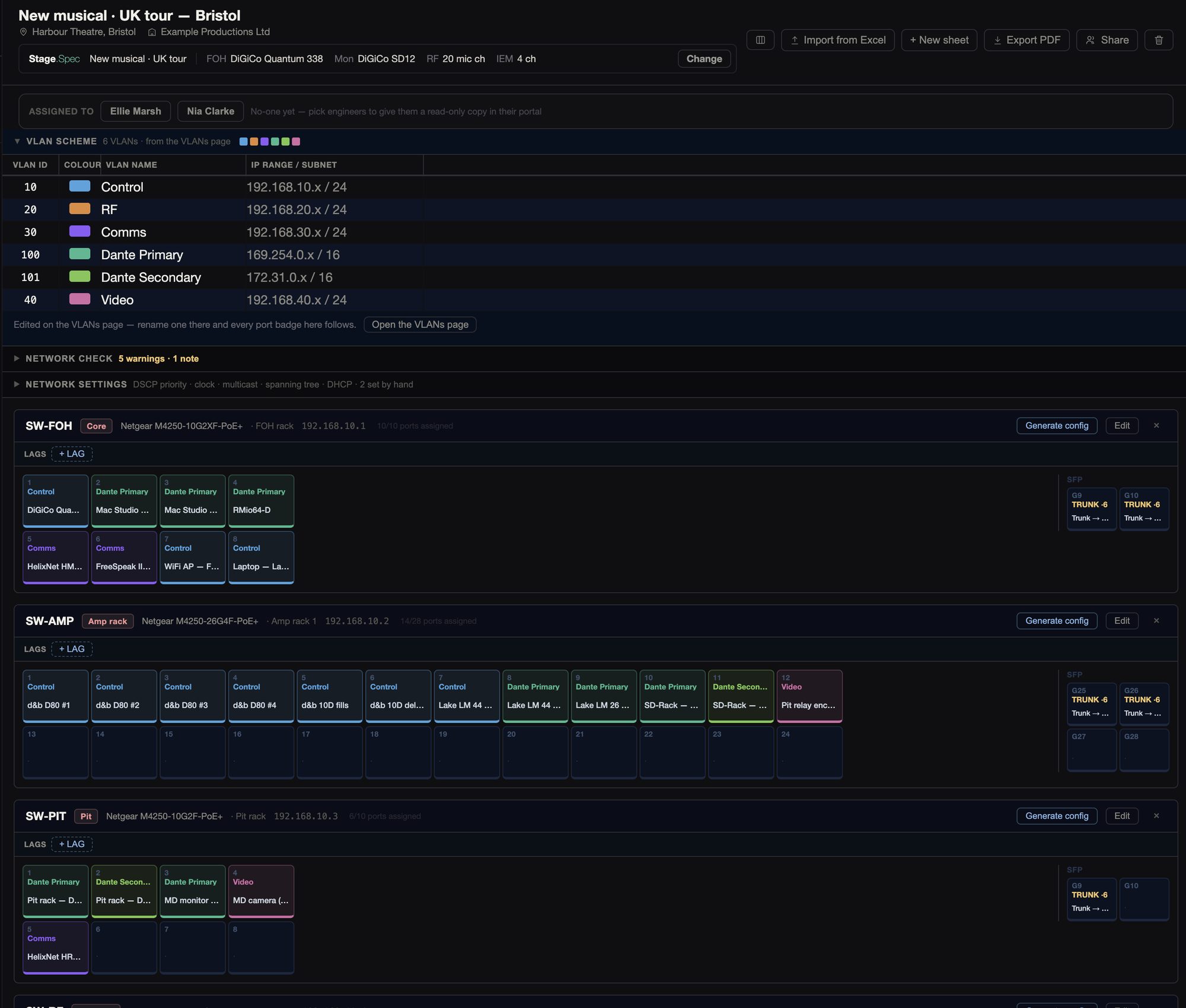
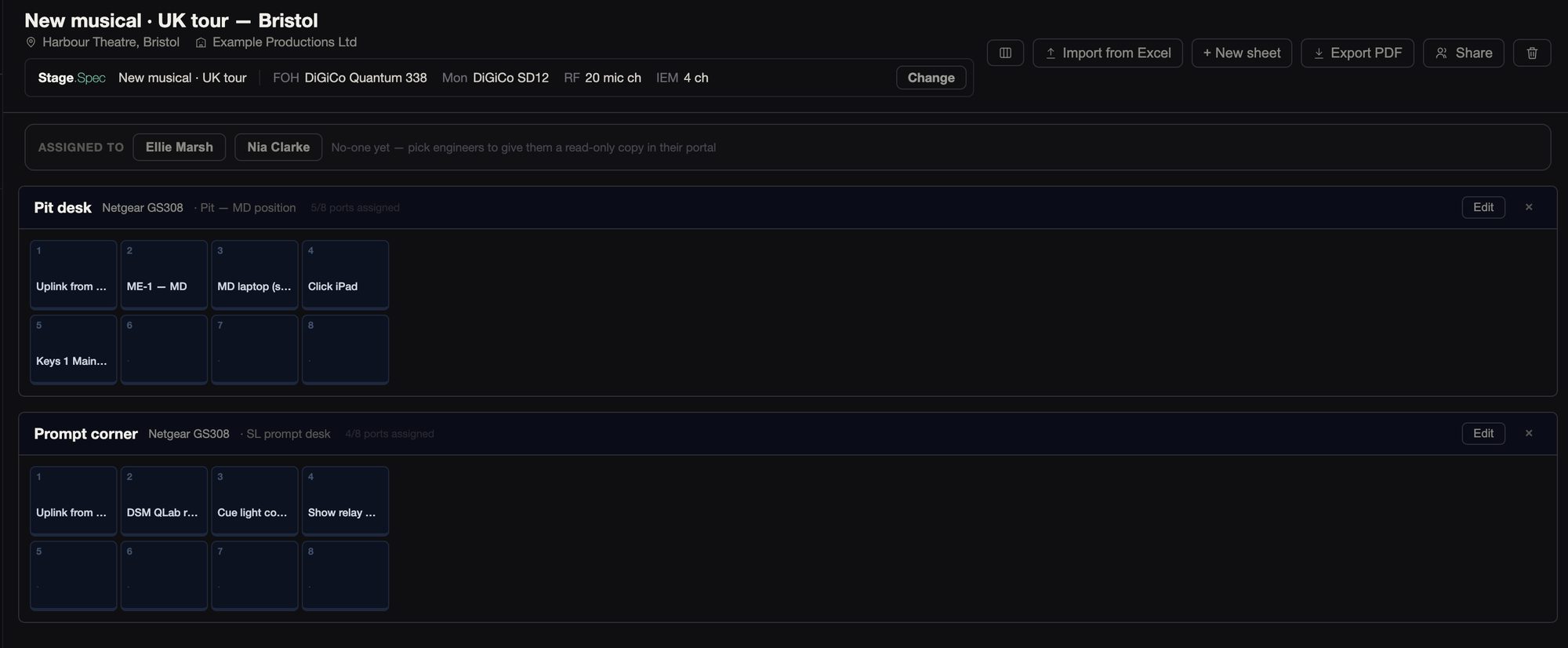
Every switch is picked from the shared catalogue and drawn with its real ports and SFPs, and the spec’s switches come across in one click. For each port you set the VLAN, trunk and native VLAN, LAG, PoE priority and limit, and speed. When you set an uplink, both ends are filled in.
The network check reads every page against the others. It looks for duplicate tags or subnets, one address on two devices, a VLAN that isn’t on any port, uplink ends or native VLANs that disagree, a management address off the management VLAN, no IGMP querier or more than one, and mixed PTP versions.
The switch settings are worked out from the VLANs: QoS with a clock queue, IGMP, DHCP snooping, spanning tree and PoE, with EEE and flow control off. You can pin any of them by hand.
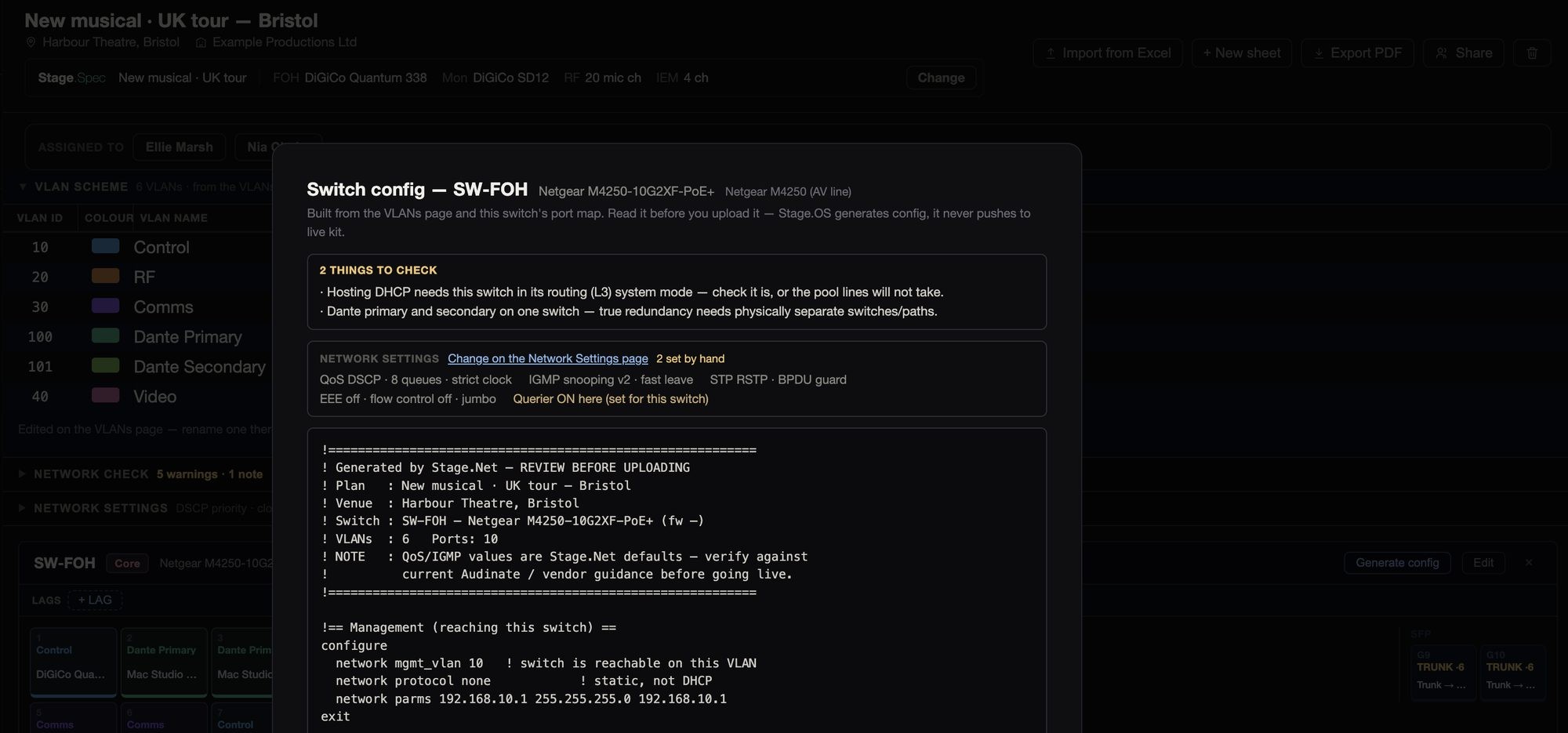
Stage.IO writes command-line config for the Netgear M4250 and the Cisco SG250, SG350, SX350, CBS220, CBS250 and CBS350, with a list of things to check before you use it. You can copy it or save it as a file. Stage.OS never touches a switch itself. Unmanaged switches get the same port map, without the VLANs.
Dante Patch
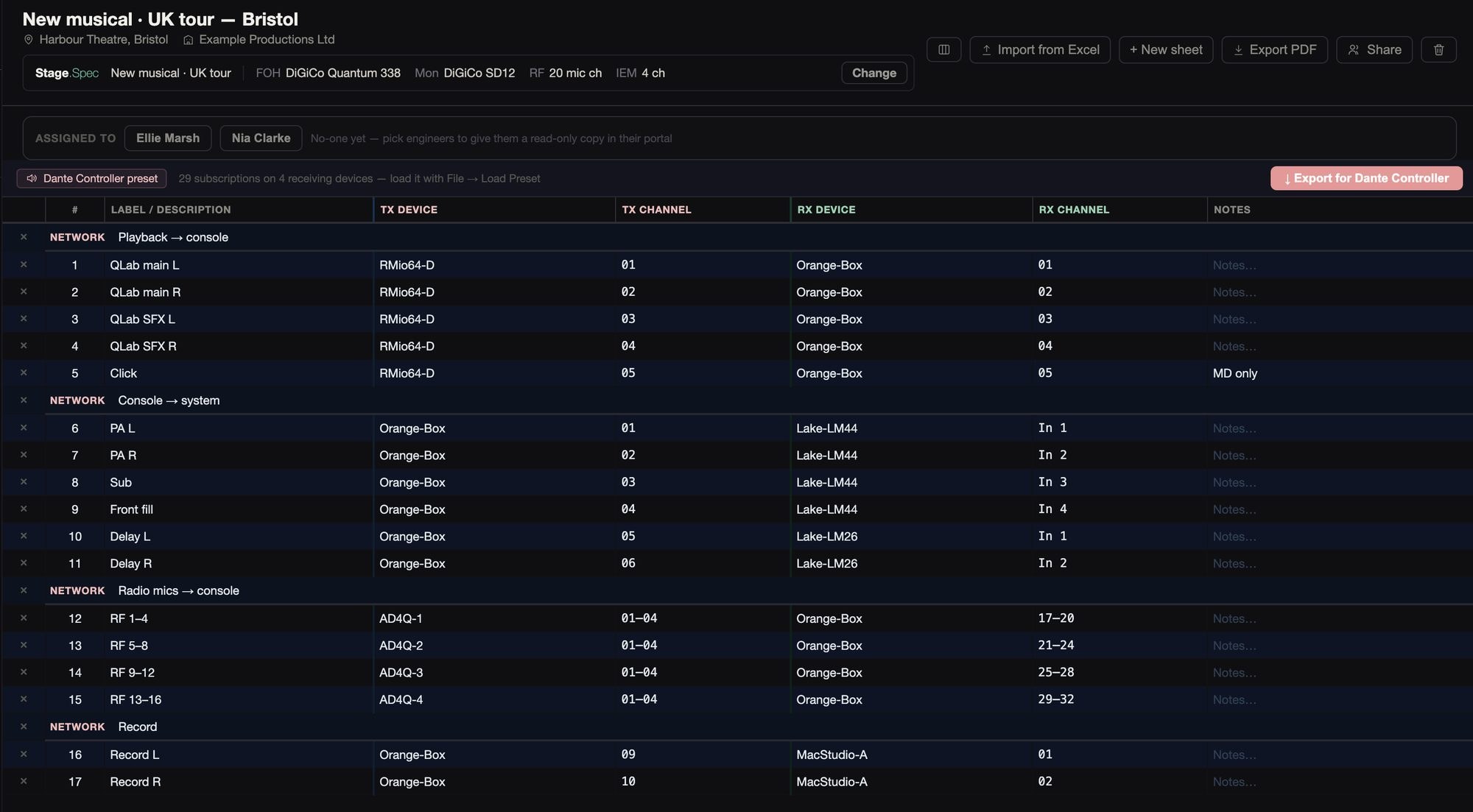
Each subscription goes from a transmitter and channel to a receiver and channel, in sections you name.
You can save the patch as a preset to load in Dante Controller (File → Load Preset). It holds each receiver’s channels and what they subscribe to, with devices matched by name. You can see the example project’s preset file. Rows Dante wouldn’t accept, such as a device name with spaces or a channel patched twice, are listed with the reason, so you can fix them first.
06Patching
Every signal from end to end on a single patch, which the split, the looms and the racks all read from.
06Patching
Every signal from end to end on a single patch, which the split, the looms and the racks all read from.
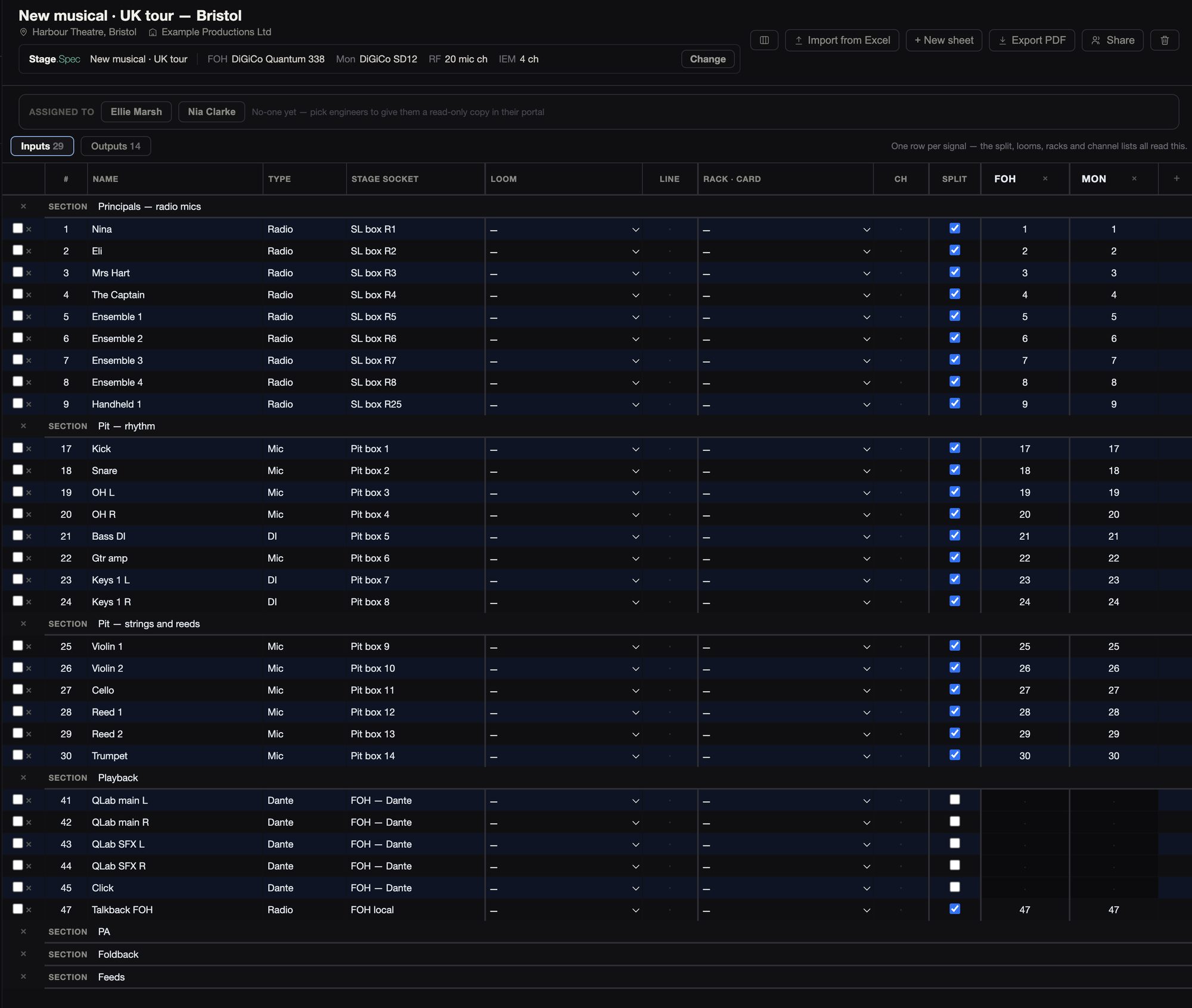
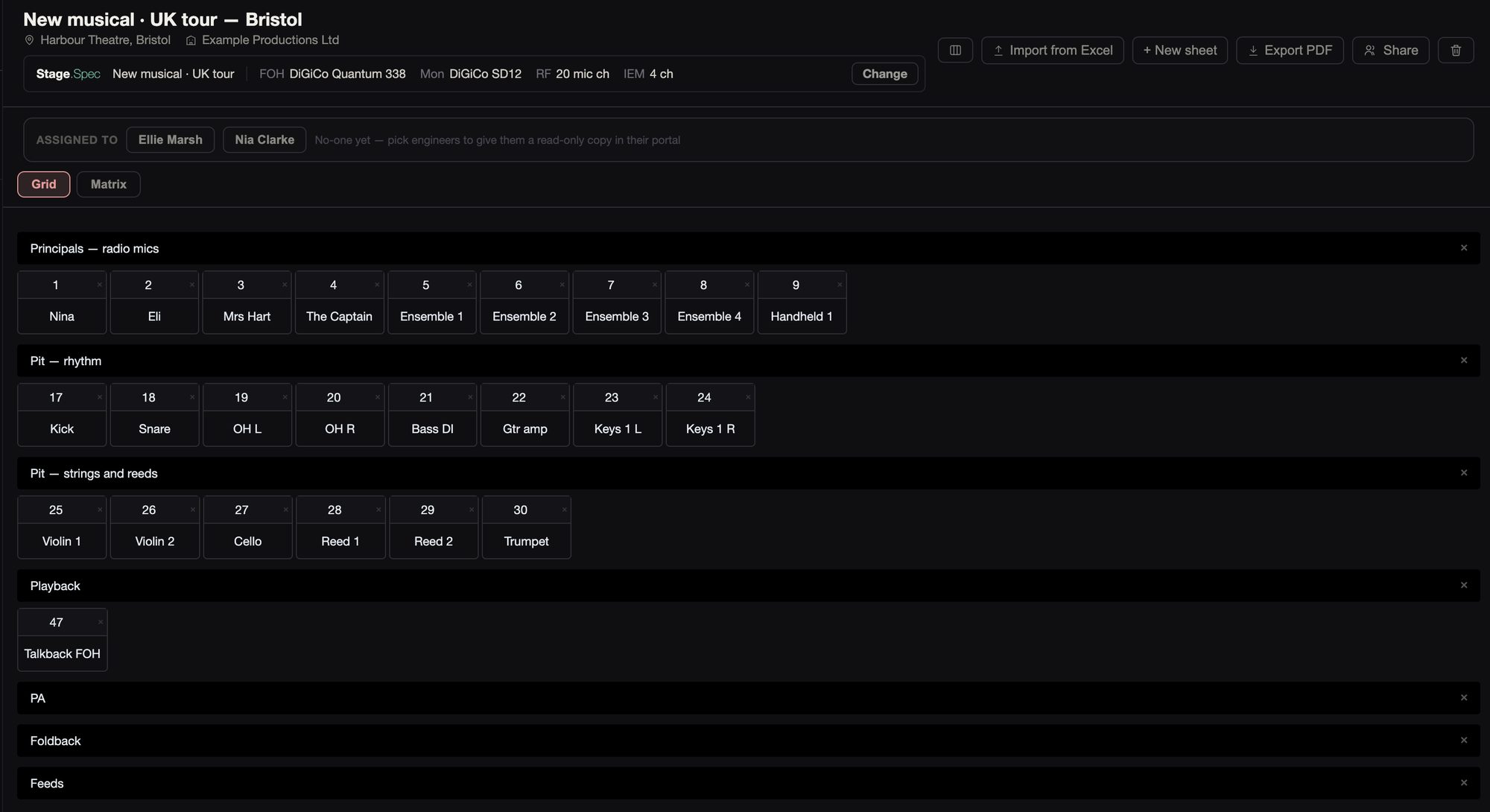
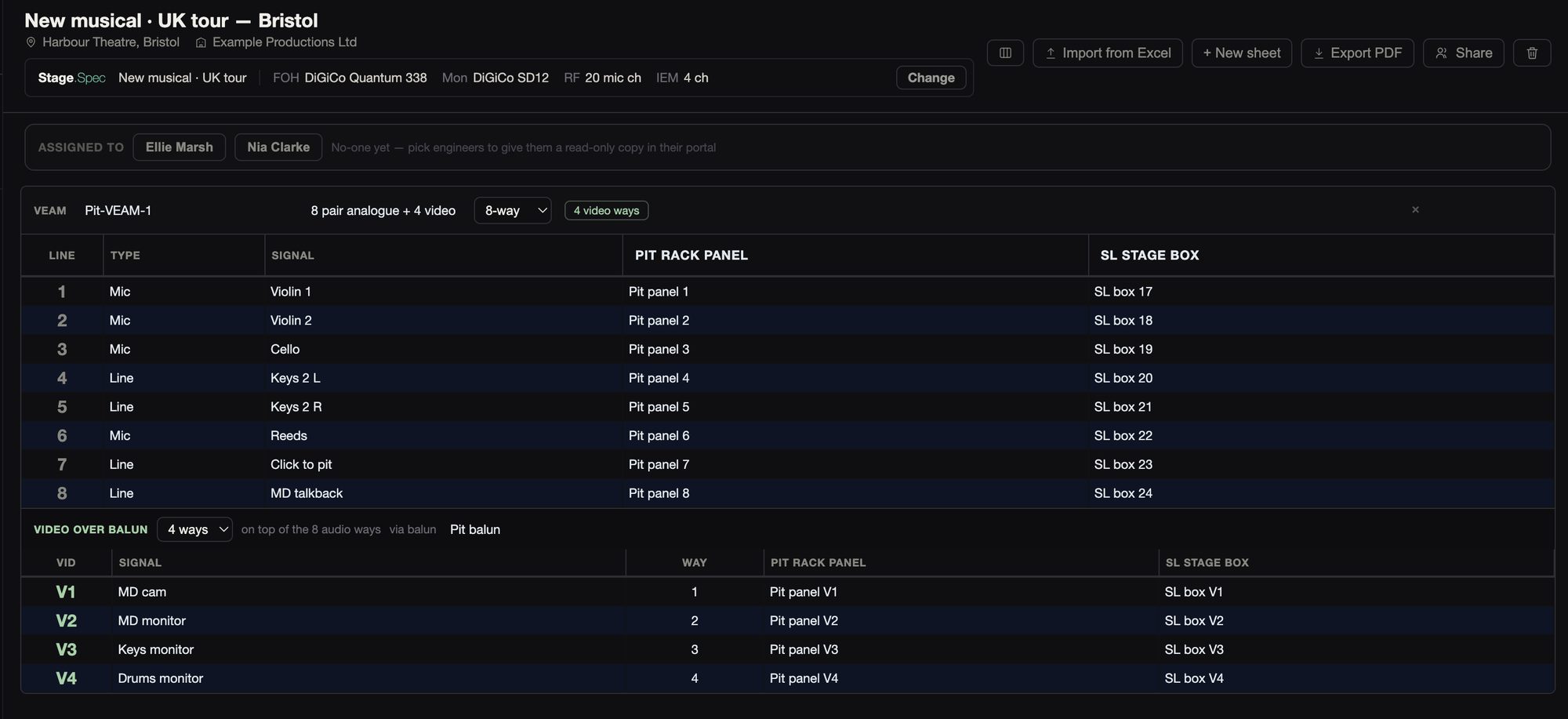
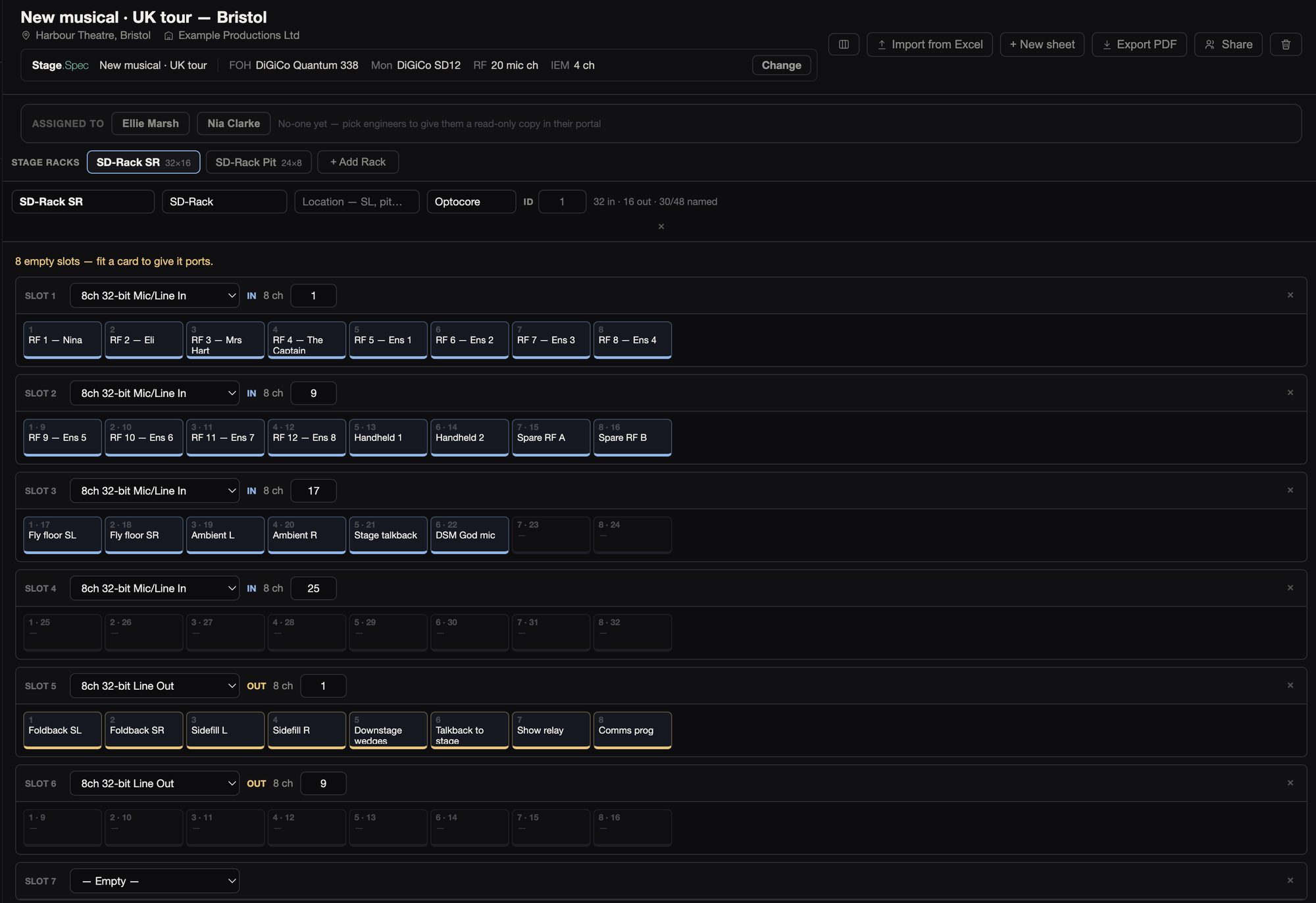
Each row of the patch has a name, type, stage socket, loom and line, rack and card, channel, whether it’s split, and a column for every destination. You add rows in blocks of 8 to 64.
The split shows the patch as a numbered grid, sixteen to a row, or as a matrix. It starts with FOH and MON, and you can add Broadcast, Record or anything else.
VEAM and multicore looms can be 6, 8, 16 or 24 ways. If you pull the looms from the multis, they stay in step with them. A line that’s used on the patch shows its name, and 8-way looms can carry video over baluns.
Stage racks from DiGiCo, Avid, Yamaha, Midas, Allen & Heath and Behringer are laid out card by card with their channel numbers, and every port shows its name from the patch. The spec’s racks come across in one click, with their cards fitted.
07Infrastructure
The multis, the looms out to the players, and the cable and rigging calls.
07Infrastructure
The multis, the looms out to the players, and the cable and rigging calls.
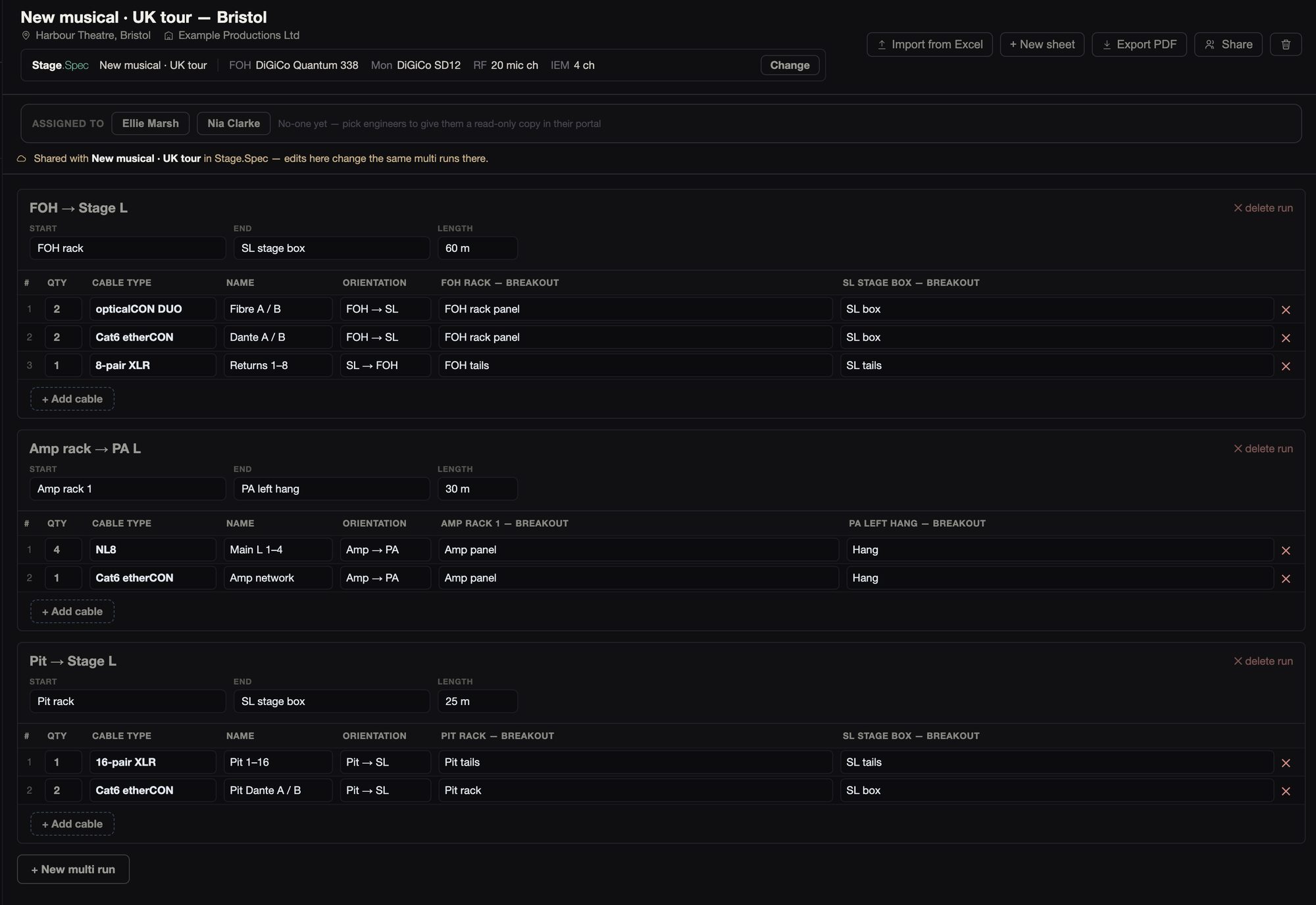
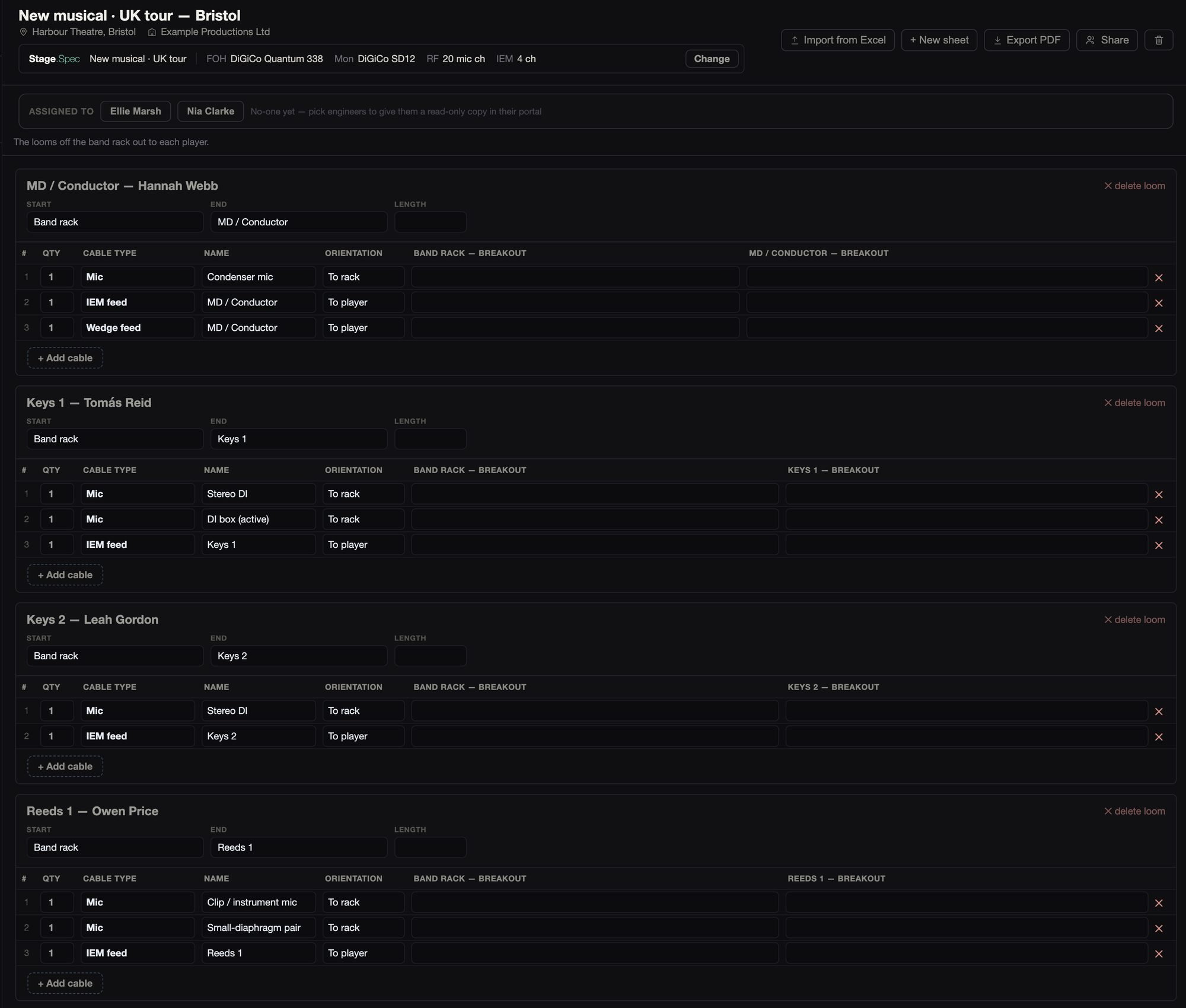
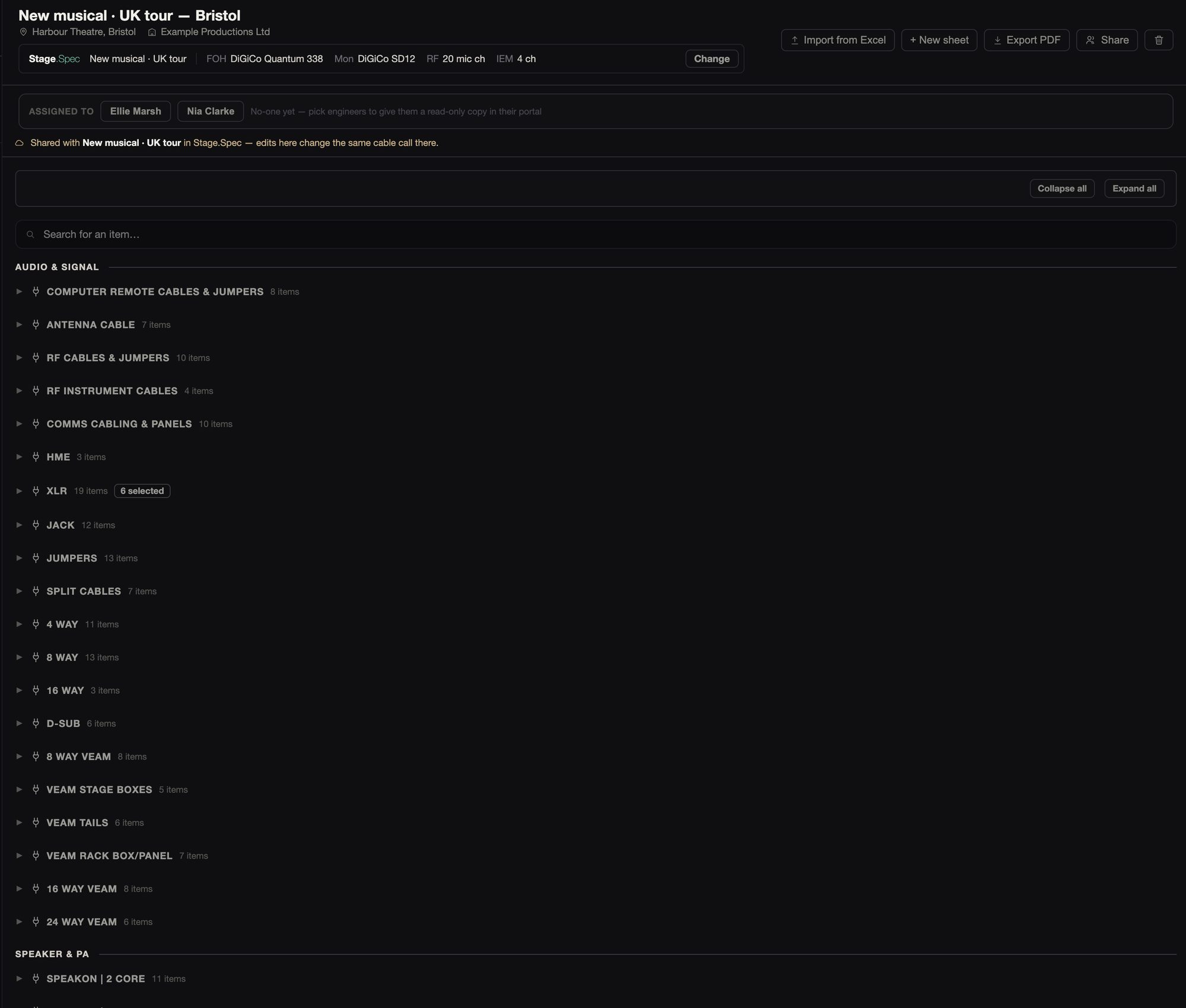
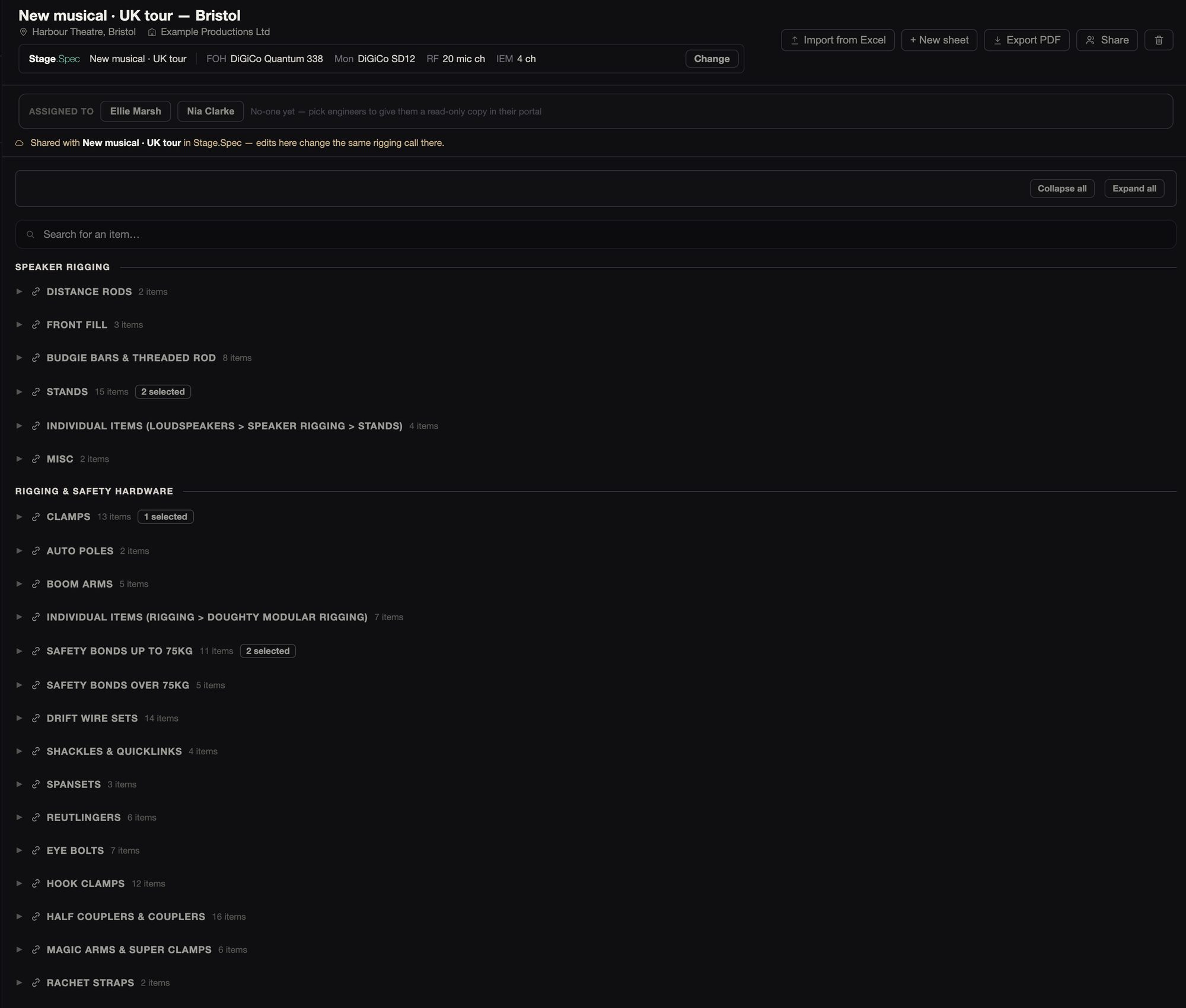
With a spec linked, the multis, cable call and rigging call are the spec’s own lists, so a change made in either app shows in both.
Each player gets a loom, taken from the band, with their mics coming back and their IEM or wedge feed going out.
08Power
What’s on every way of the main distro and the UPS.
08Power
What’s on every way of the main distro and the UPS.
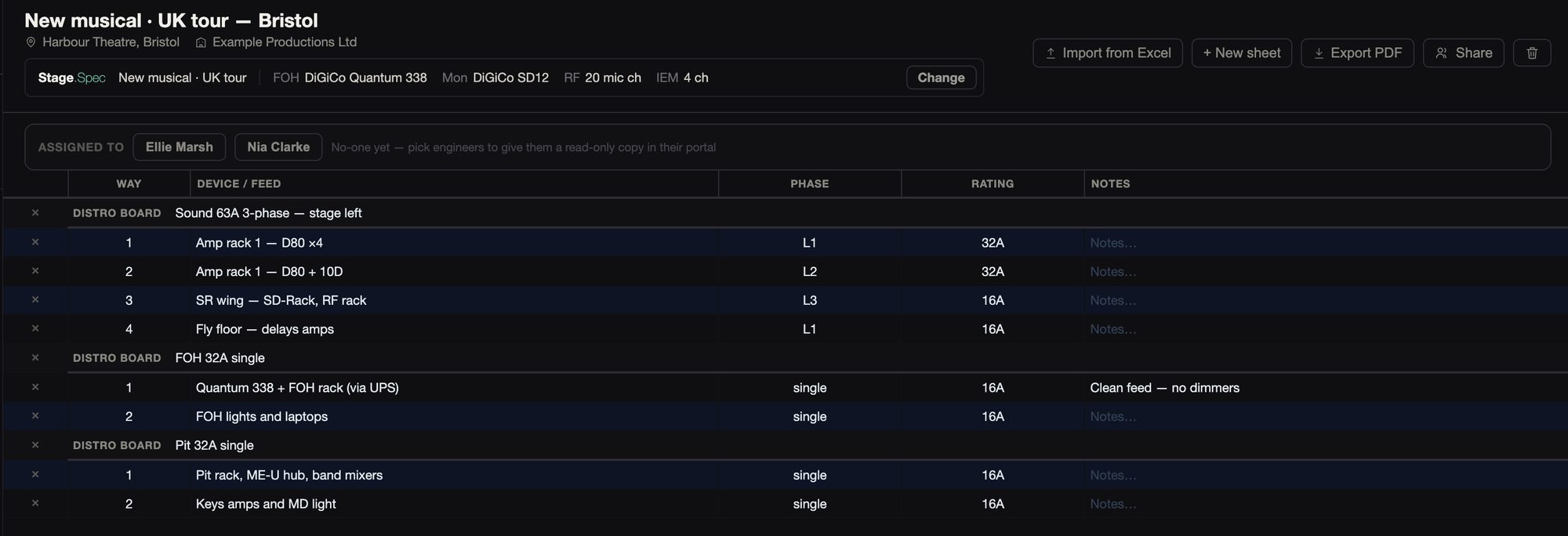
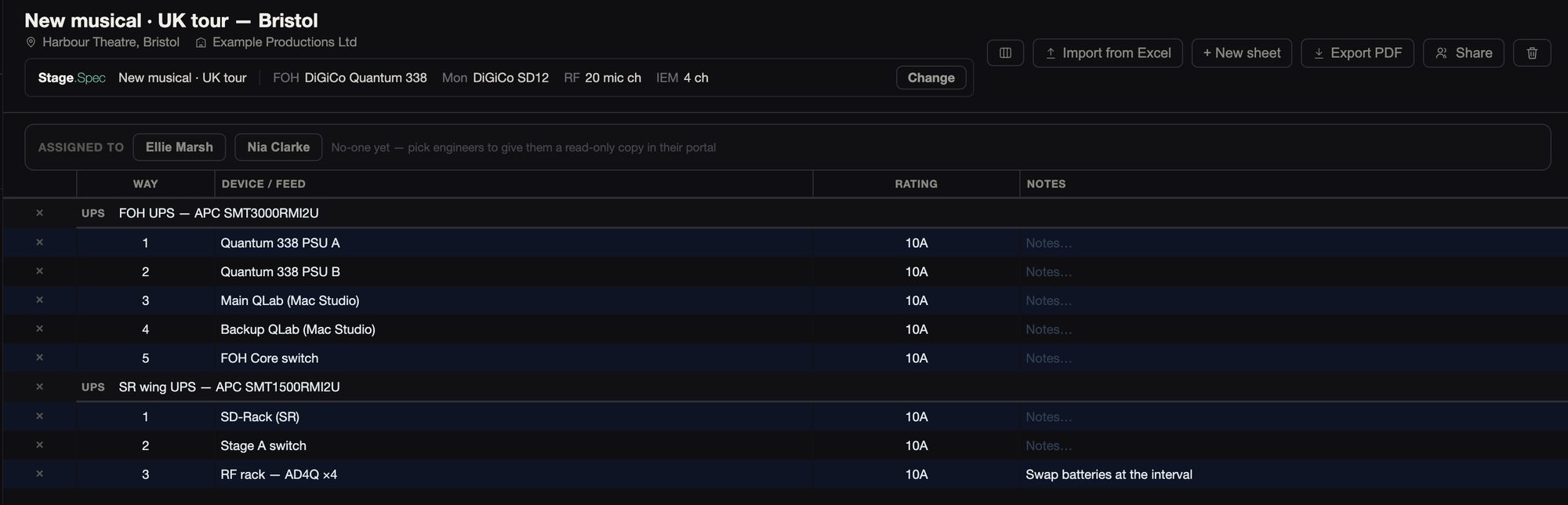
The ways are listed under each board or UPS, each with what it feeds, its rating and notes, and on the main board its phase.
09Video
Cameras, the router, converters and baluns.
09Video
Cameras, the router, converters and baluns.
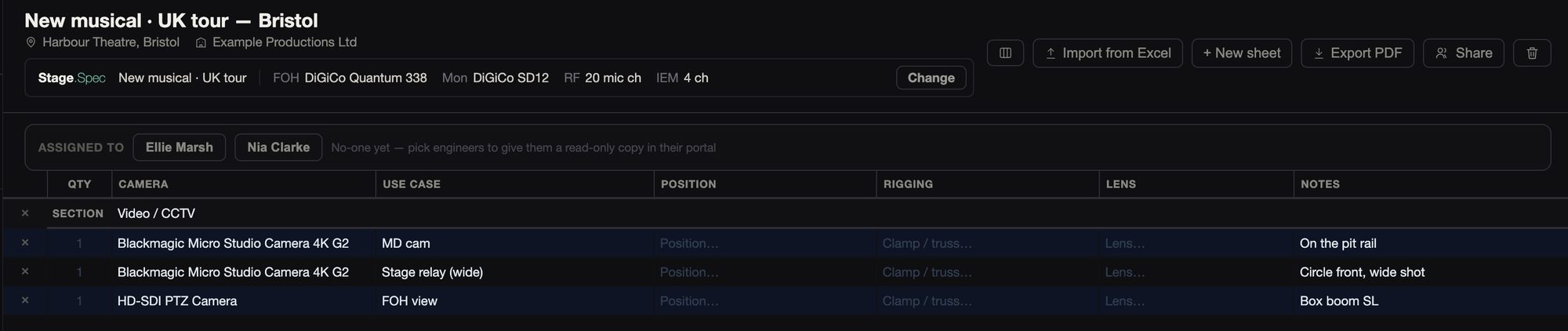
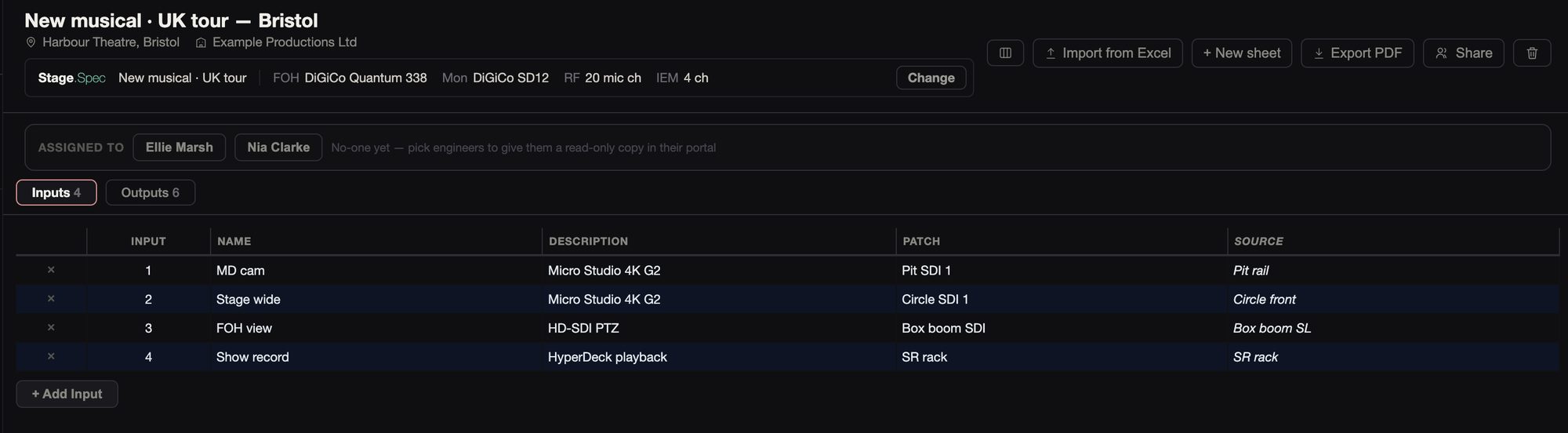

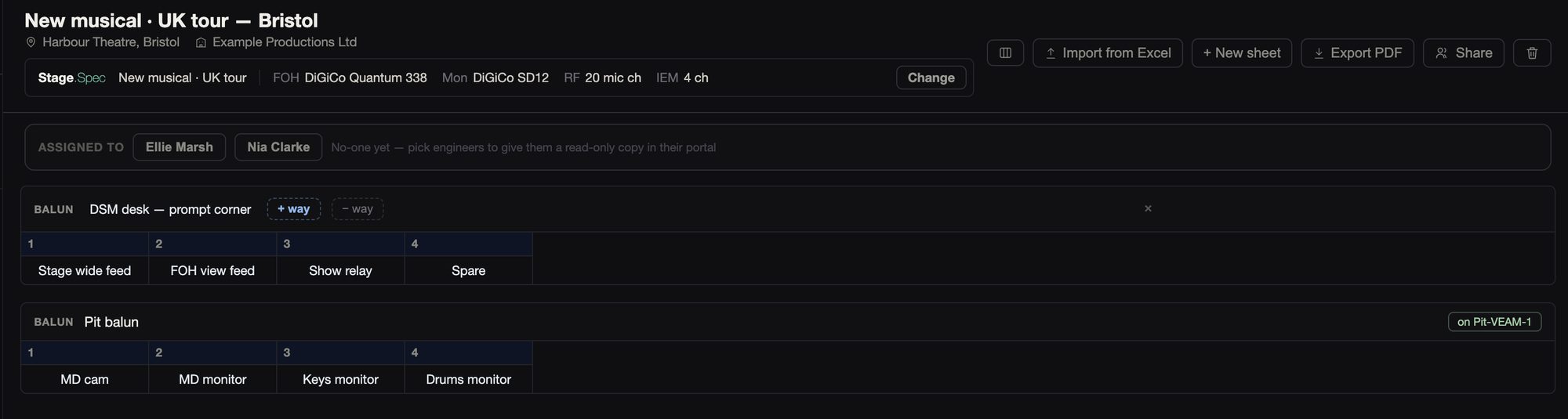
Each camera has its use, position, rigging and lens, and each converter its type, location, optic patch and SDI. Both come across from the spec.
The router page lists the router’s inputs and outputs, each with a name, patch and source or destination. Standalone balun strips and the baluns on 8-way VEAM looms are kept in one list.
10Comms
Each comms station and the rings it’s on, and the radios.
10Comms
Each comms station and the rings it’s on, and the radios.
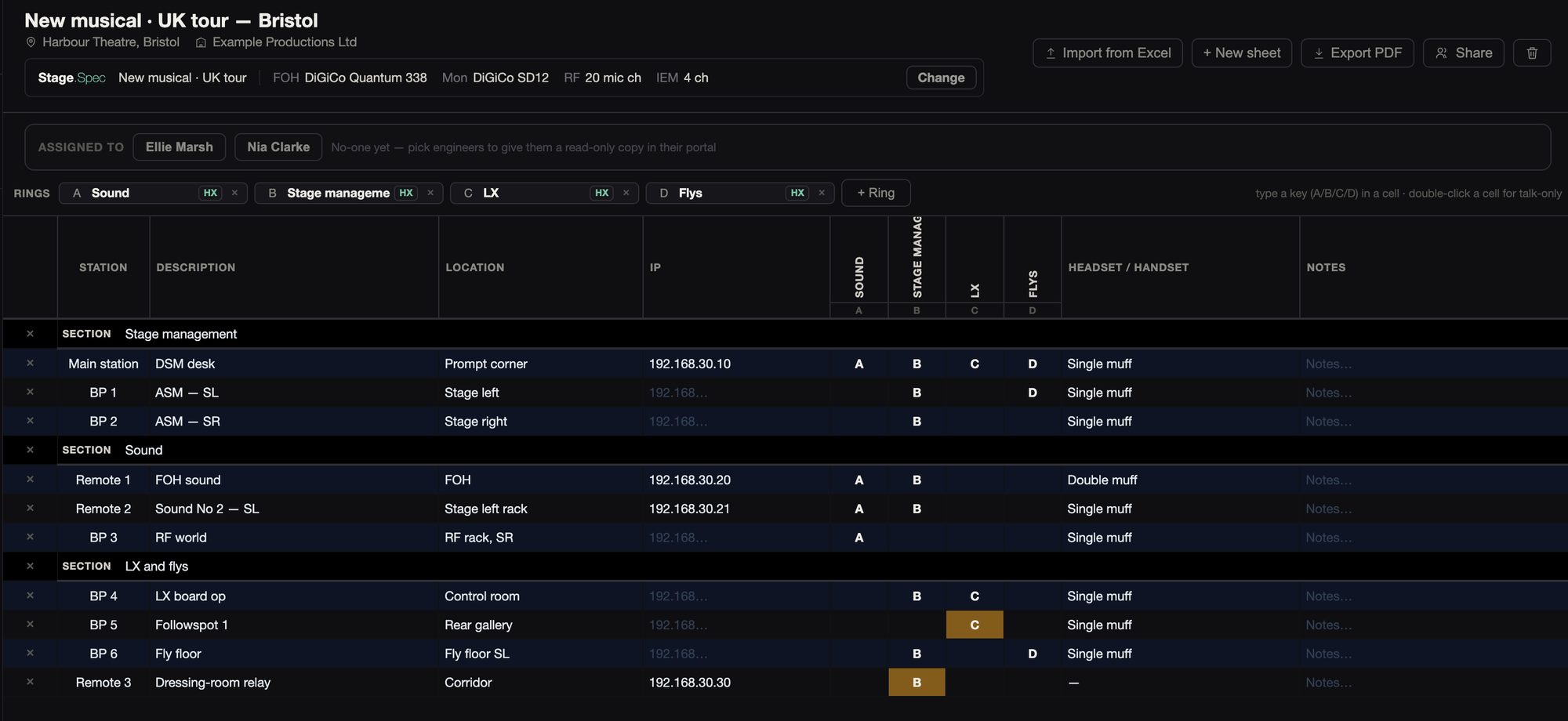
The comms matrix has the rings across the top and the stations in groups down the side. Type the key in the cell, or double-click for talk-only. The spec’s matrix comes across, including the keys.
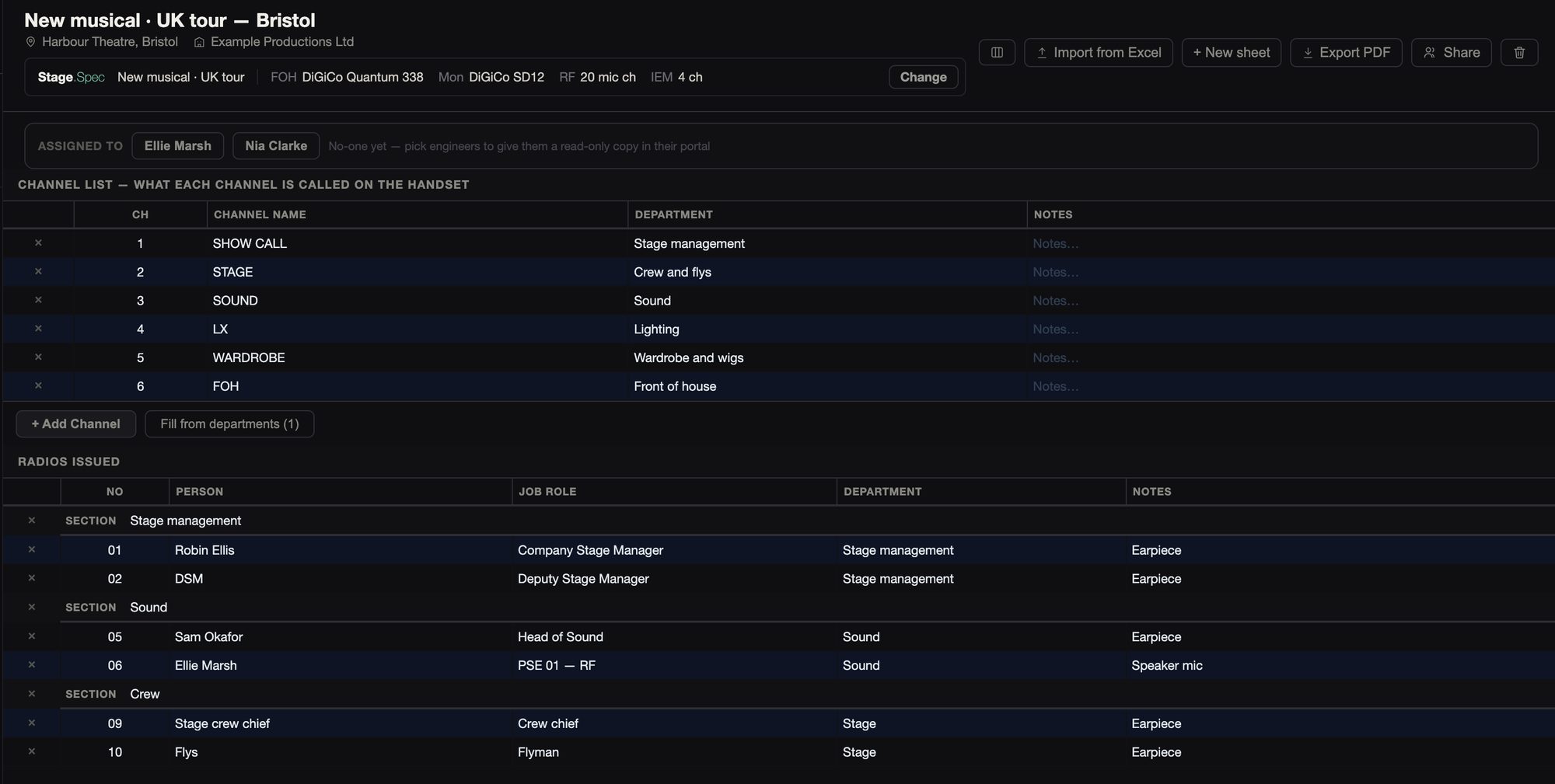
The radio page lists the channels by department and every radio issued, with who has it. Stage.Label makes the radio labels from it.
11System
What feeds each amp, and what goes through the processing.
11System
What feeds each amp, and what goes through the processing.
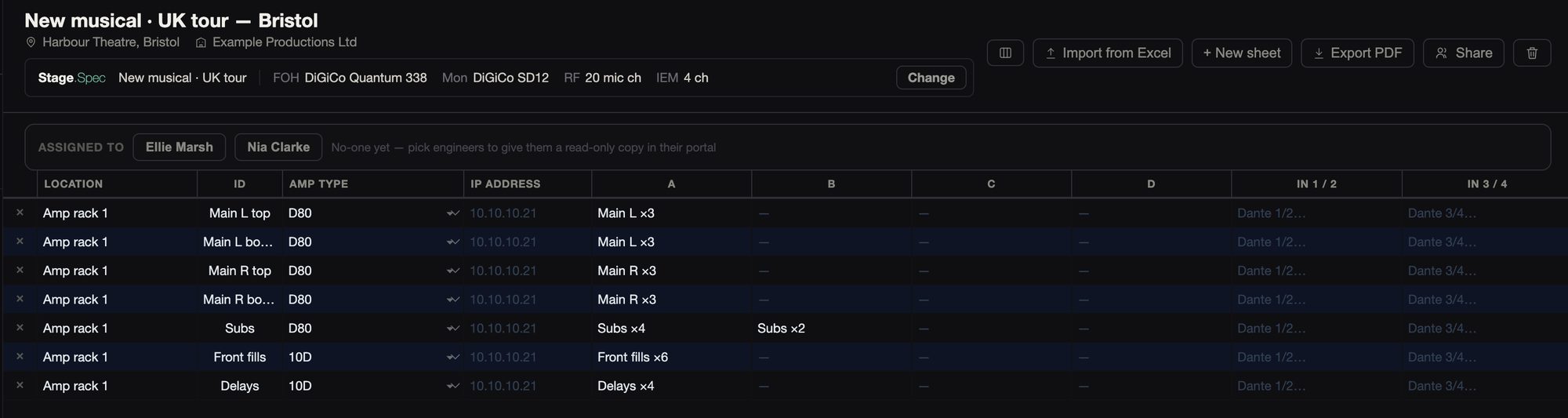
An amp’s outputs and inputs are set by its model. There are 18 models across d&b, Lab.gruppen, Powersoft, Crown, Yamaha, L-Acoustics and QSC. The spec’s amps come across, and the processing outputs are suggested for the amp inputs.
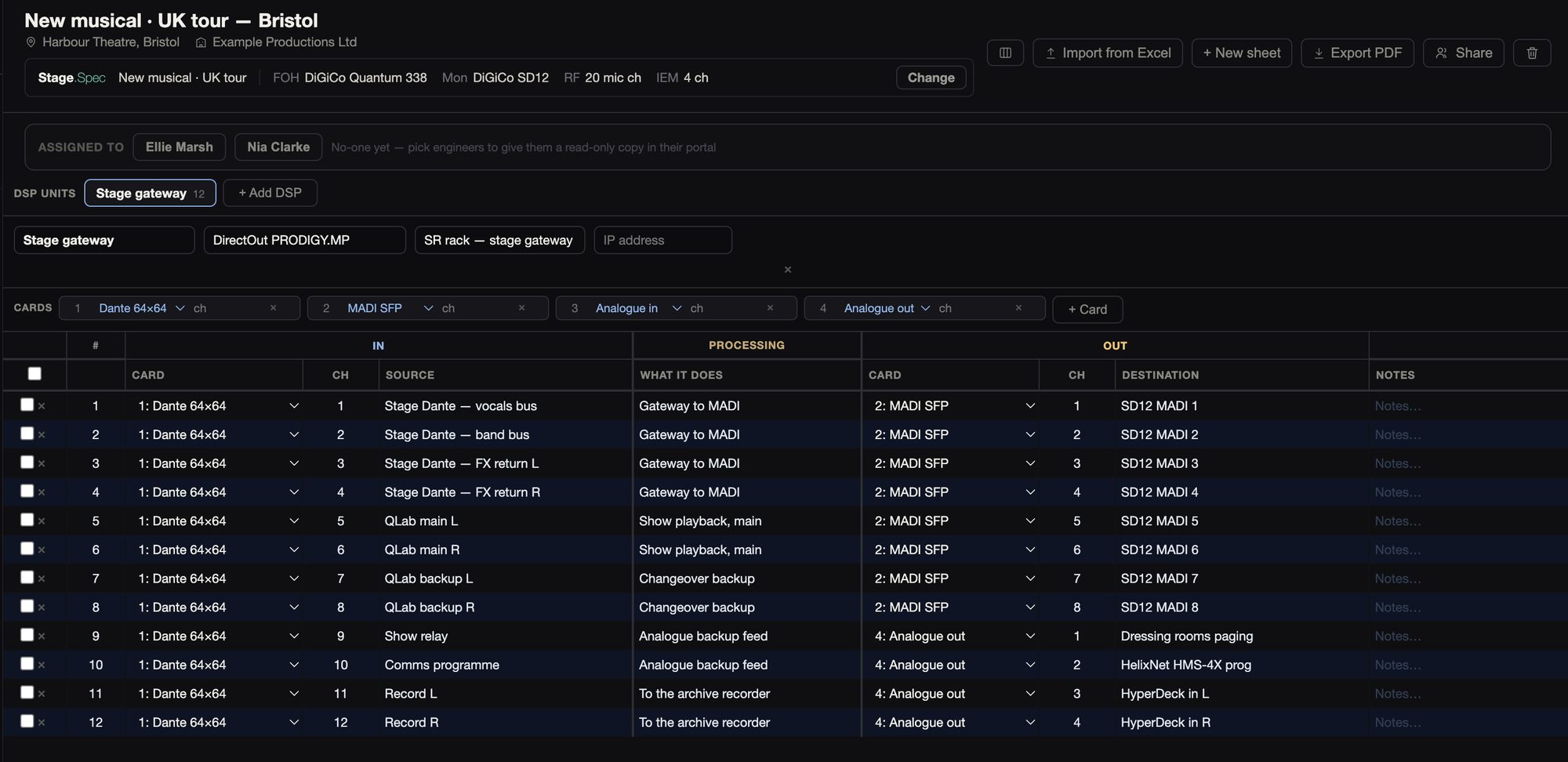
DSP patching covers DirectOut, Lake, Galileo, Q-SYS, BSS and DiGiCo DMI frames, or your own. It goes card by card: what comes in, what it does and where it leaves. You can lay out a whole card at once.
12Misc
Show control, cue lights and the fibre.
12Misc
Show control, cue lights and the fibre.
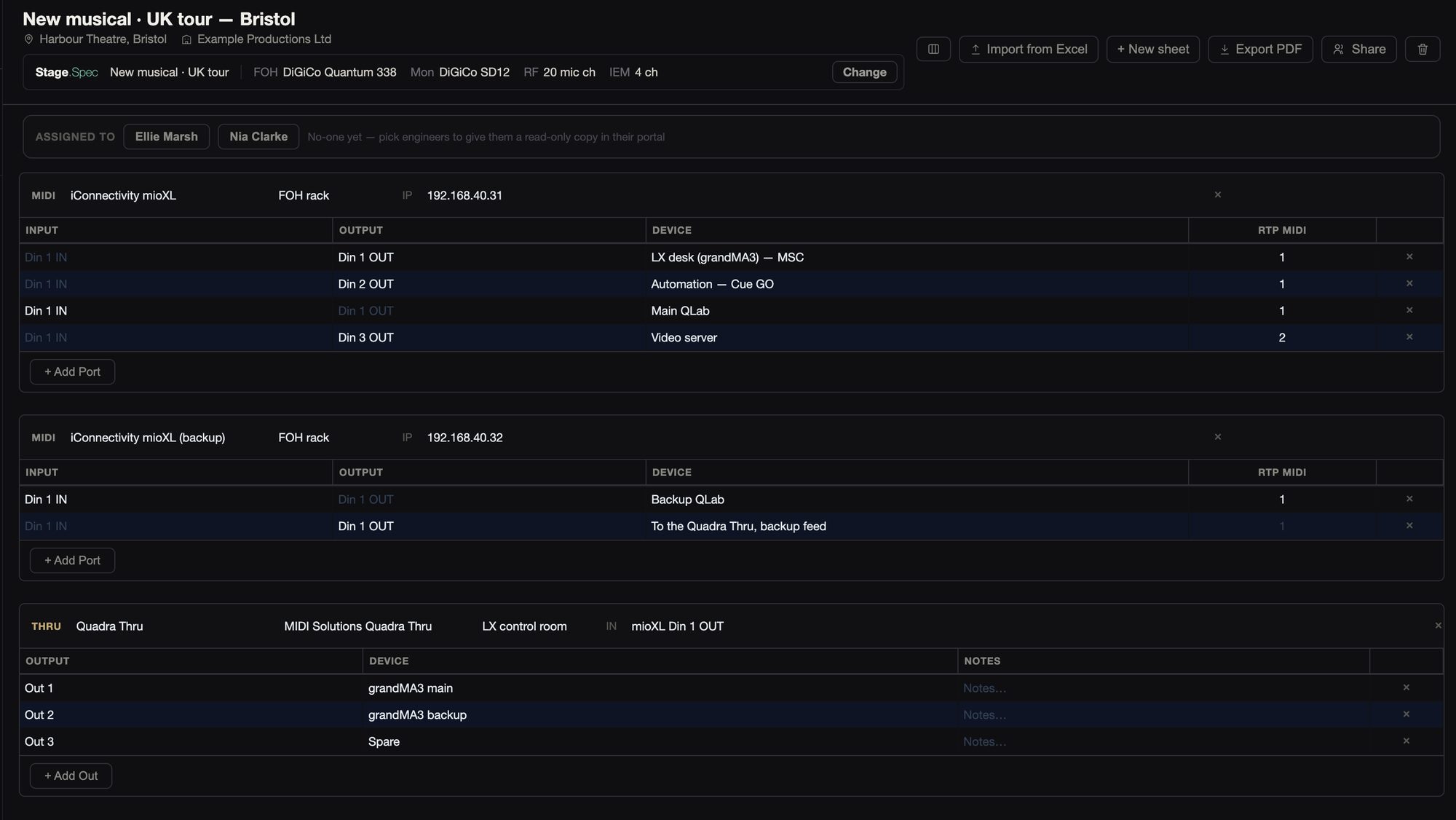
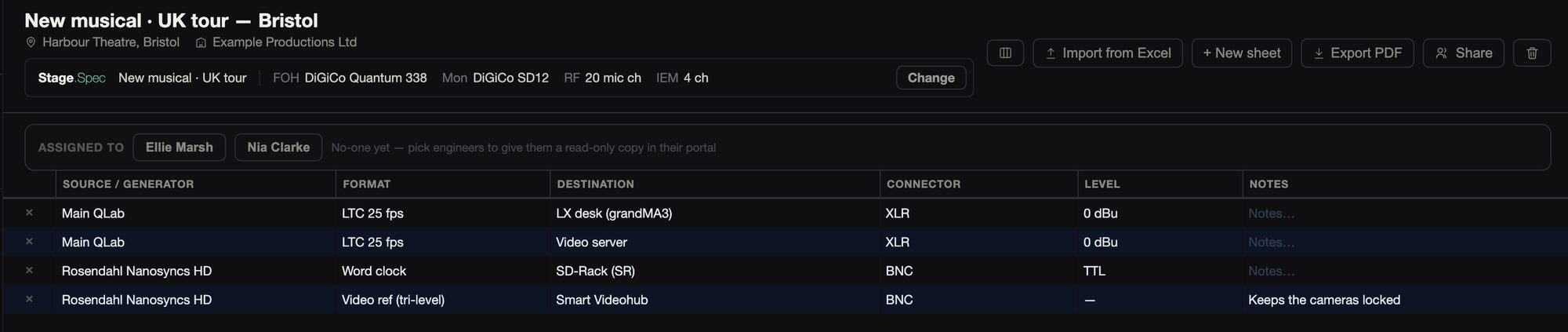
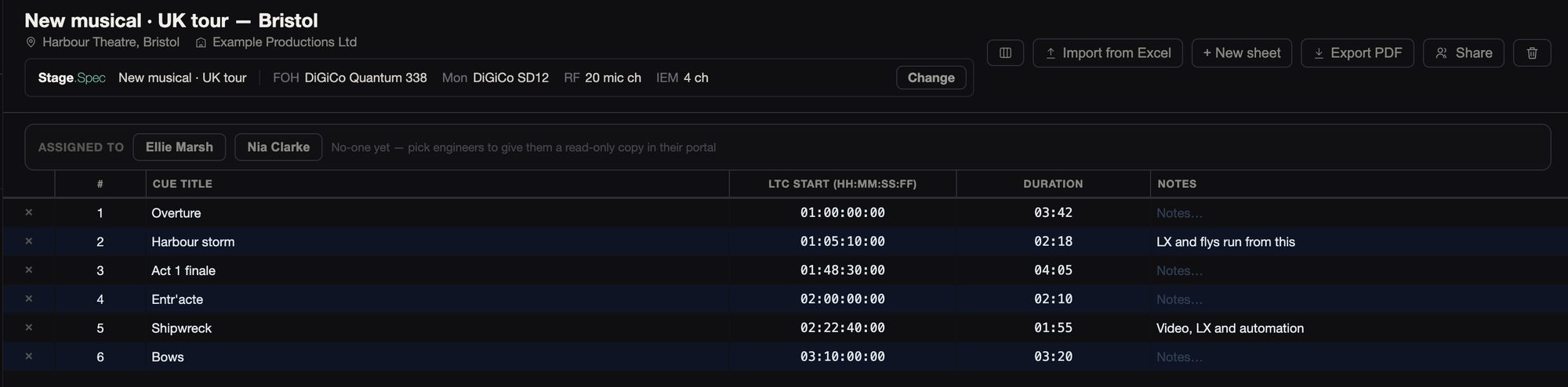
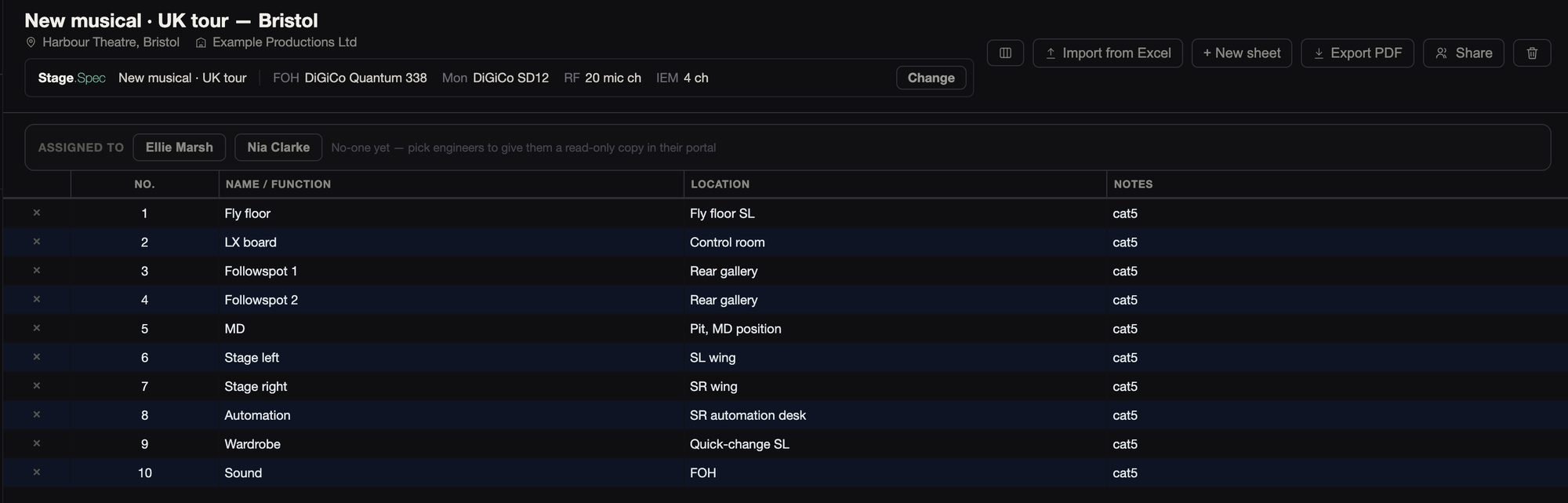
MIDI interfaces and thru boxes are listed with their ports. Timecode Distribution shows where timecode goes and in what format, and the LTC plot lists the cues one by one. The cue lights list each outstation’s function and location, taken from the spec.
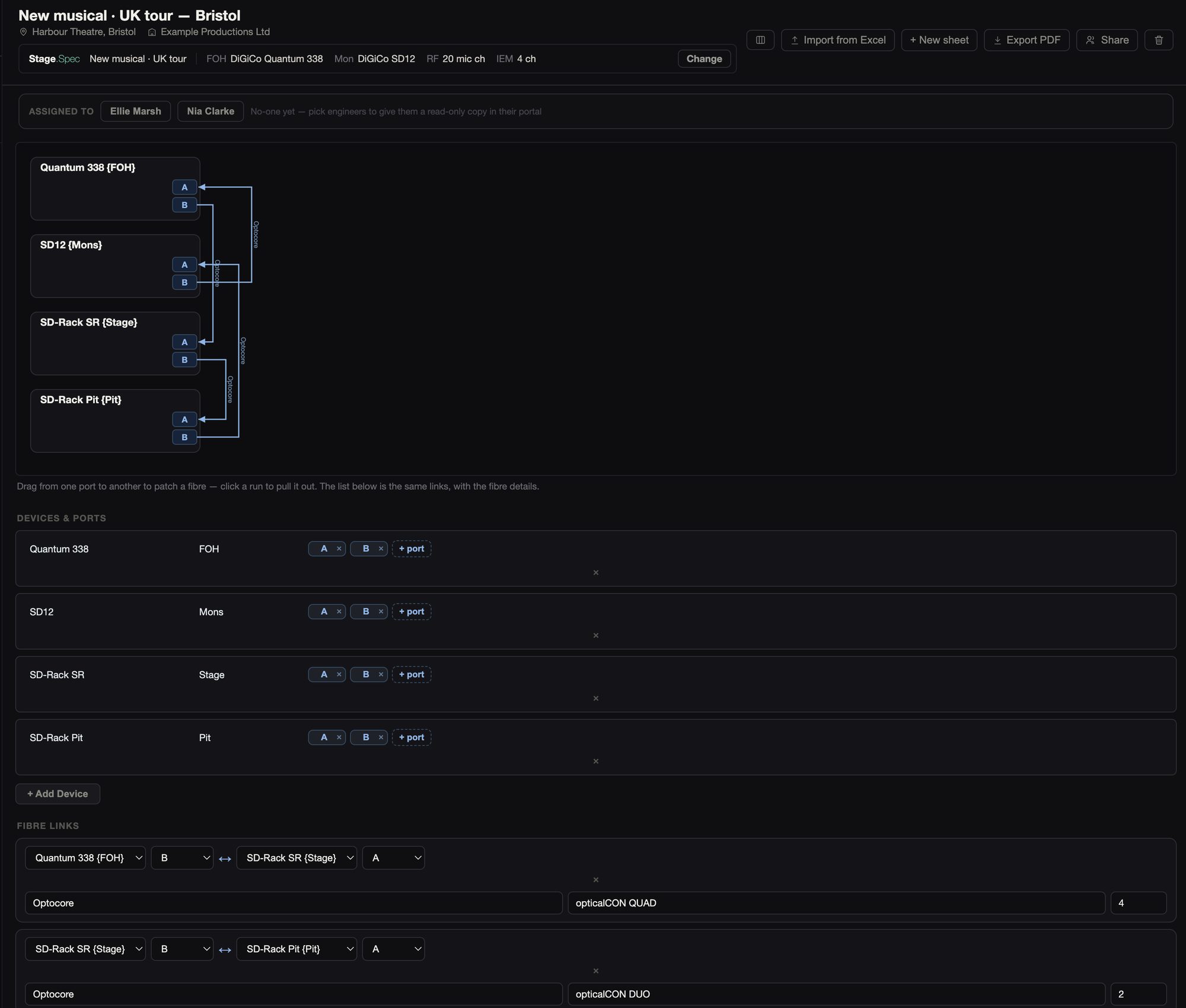
The optics loop is drawn as a loop. Drag from port to port to patch a fibre, with its type, connector and ways.
From the spec
Which pages fill from the linked spec, and what a pull leaves alone. You don’t type the radio mic list twice.
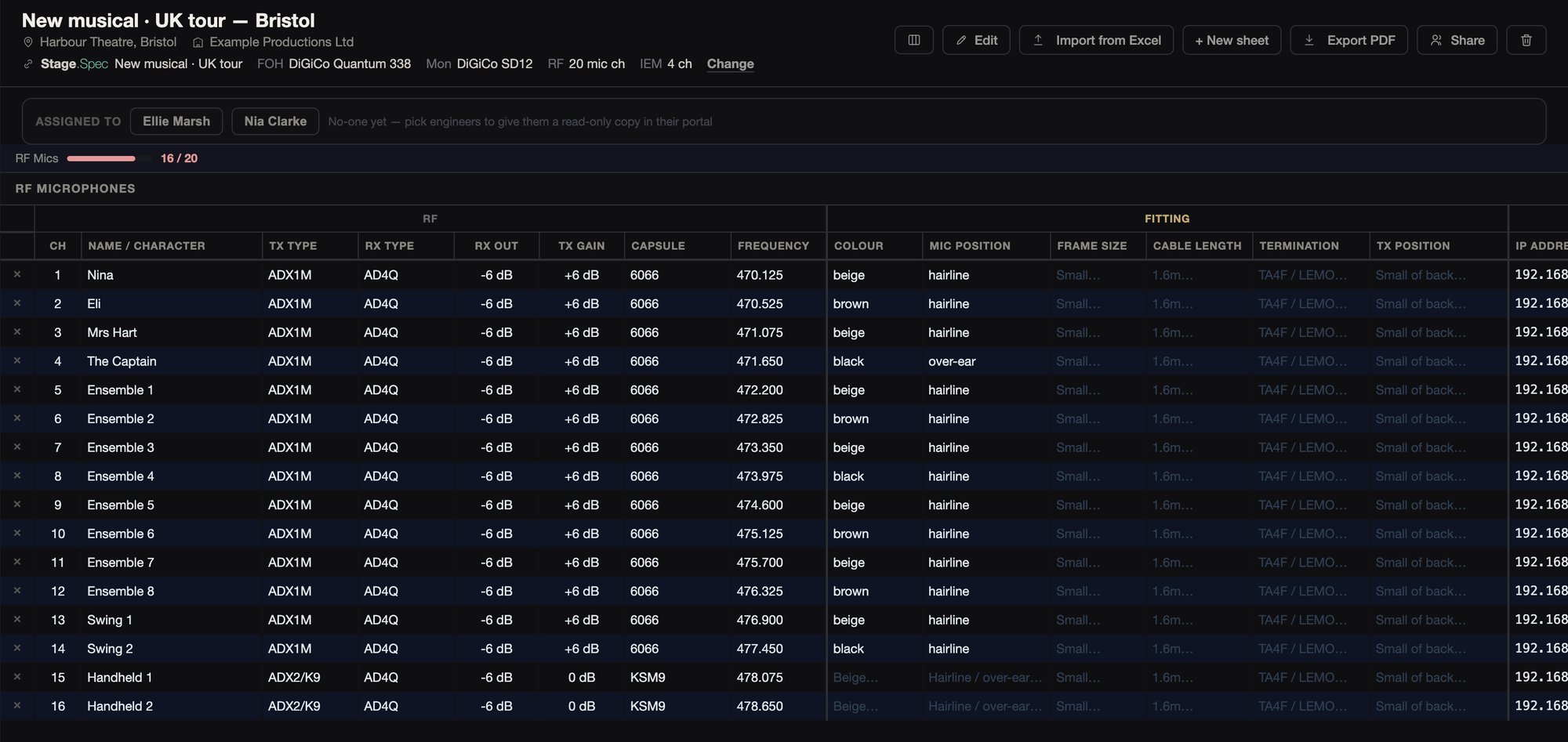
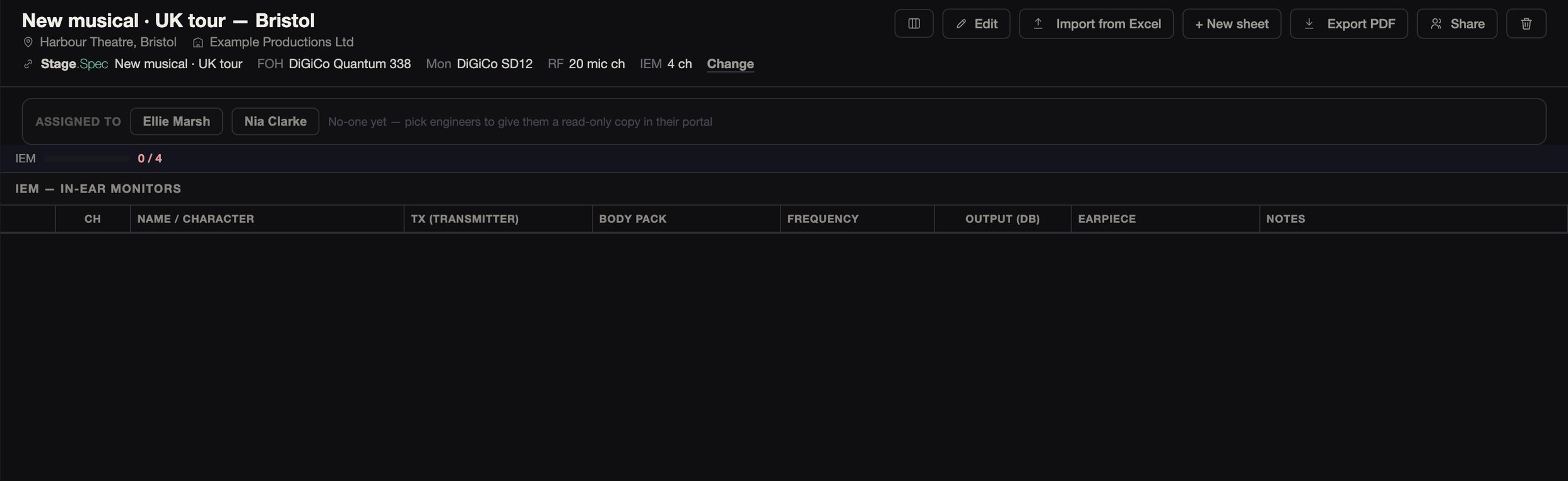
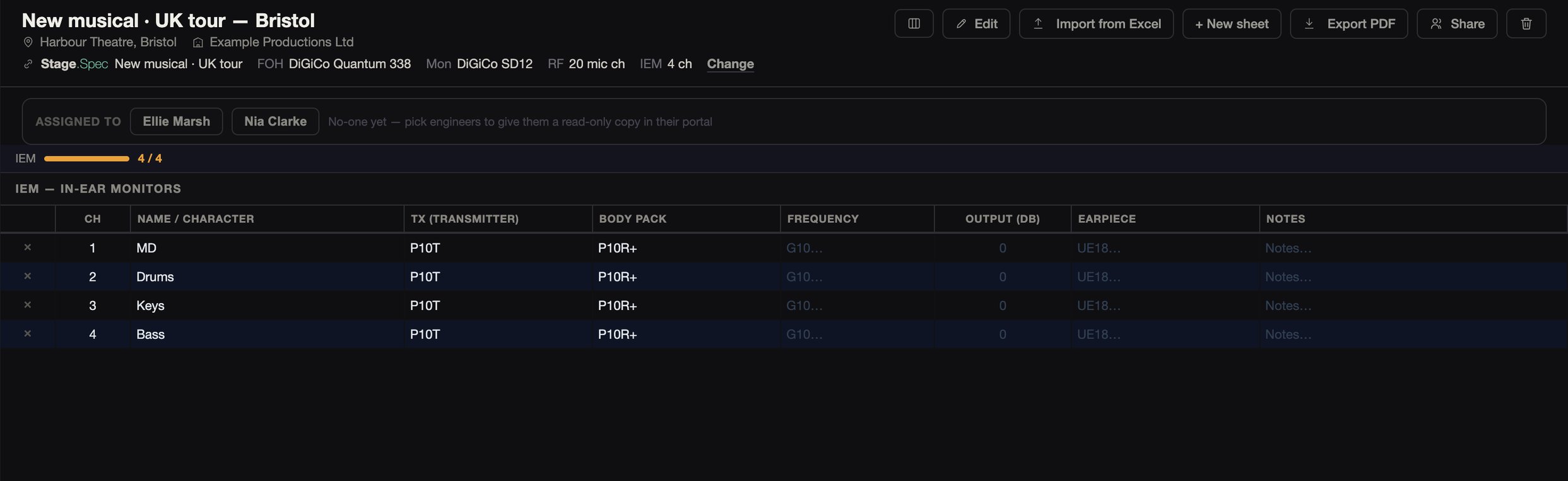
You can pull across the consoles, radio mics and IEMs, band players and their mics, player looms, switches, stage racks, amps, cameras and converters, the comms matrix and the cue lights.
Nothing you’ve typed or changed is overwritten by a pull. The multis, the cable call and the rigging call are the spec’s own lists, and you can change them in either app.
Each page shows how many it has against the spec.
Importing spreadsheets
You can bring your old spreadsheets with you.
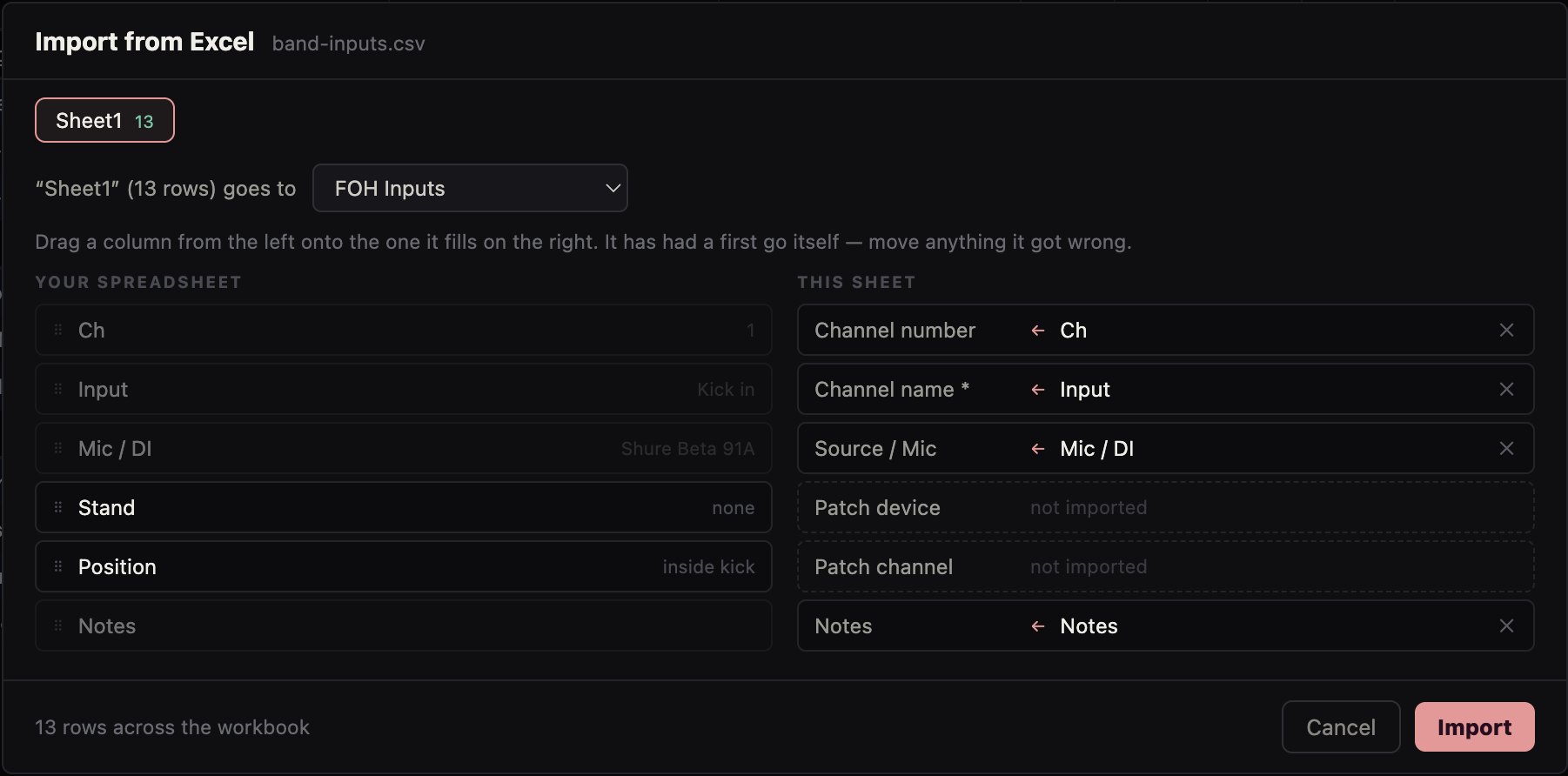
Every tab of a workbook comes in at once, and a tab kept as a sheet of its own goes in the group you choose.
A column you move to the right match is remembered next time, and nothing already on the page is replaced.
Paperwork
A single PDF of the whole project for the rack room, and every sheet on the crew’s phones.
 Input & output sheets
The cover shows the project, how many sheets it holds, and that its passwords are hidden.
PDF, 29 pages
 The sheets
The patch comes first, as the master list and then by loom, by rack and by destination. Each sheet you tick follows.
PDF, 29 pages
 Prep Share
Every sheet on everyone’s phone over the venue network, with passwords hidden.
See Prep Share
The PDF is the example tour’s Bristol project, exported from Stage.IO. PDF export is in the Mac app.
The pages run from the inputs through to MIDI, where each interface and thru box is printed with its ports.
The optics loop prints the devices on the loop, then every fibre run from device to device, with its fibre, connector and ways. When the project is linked to a Stage.Spec, the multis, cable call and rigging call print from the spec, as you see them on screen.
Sharing, labels and working offline
With the Cloud Production add-on you can invite editors and viewers. You can see who else is in the project, and edits to different rows are merged. You’re told that WiFi and computer passwords are visible to everyone you share with. Prep Share hides them.
Stage.Label makes radio and IEM pack, comms, switch port, amp, camera and balun labels from the project. You can hide the columns you don’t need on screen, and the PDF still includes them all.
You can keep working offline, and your changes are sent when you’re back online.